Selecting Item Modifiers
A modifier enables you to customize sales items according to the customer's wishes. Describing how long to cook a steak, which sides to put with an entree, and which mixer to go with a liquor are all examples of modifiers.
Modifiers need to be set up before you can use them in POS Express.
Modifier Example: Roll Up Charges
In this example, the customer orders a vodka drink. The vodka and the mixer have separate charges, but CPS Air will roll up the charges for the mixer into the drink total.
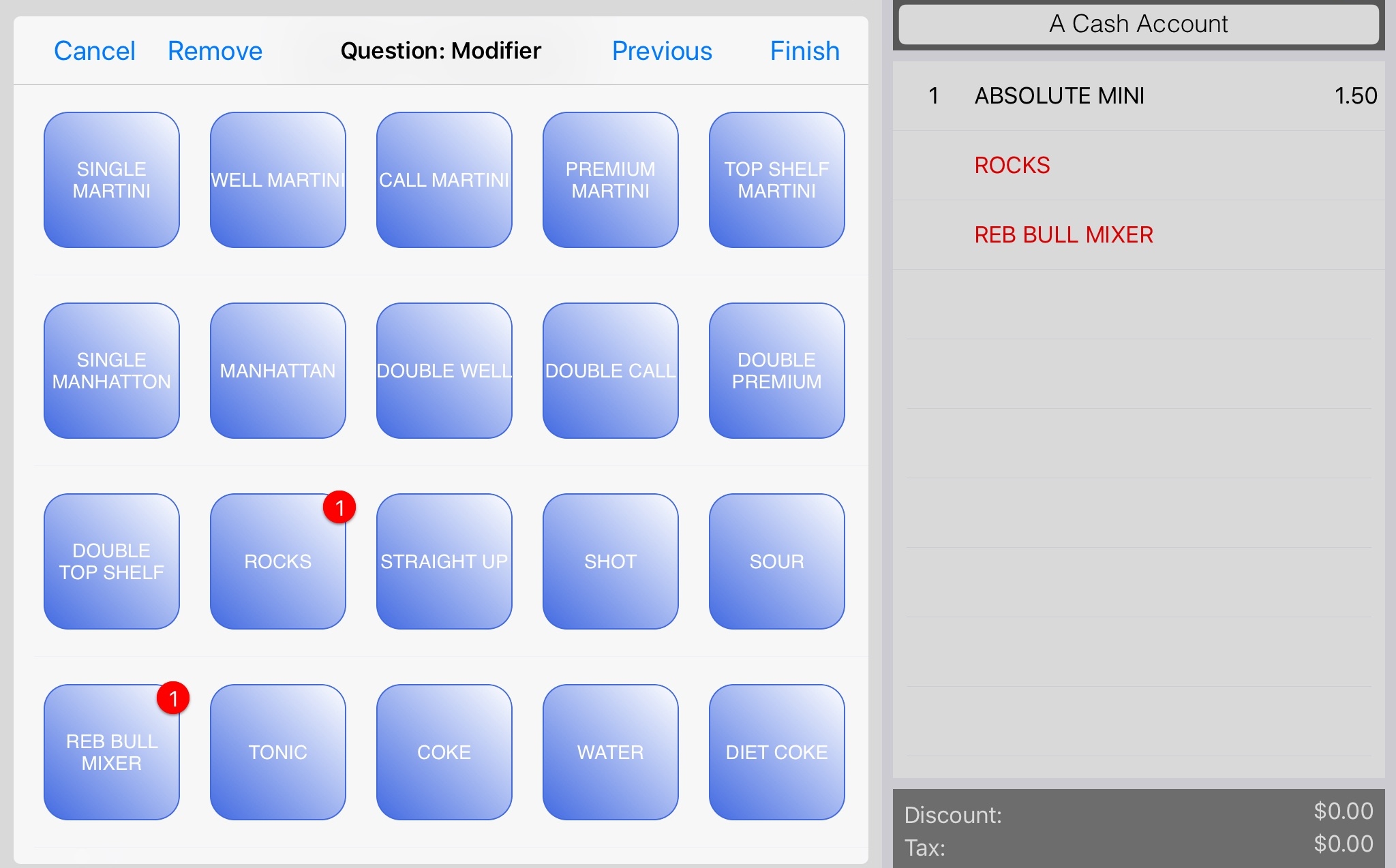
- First, select the drink, shown here as an Absolut Vodka mini. The Modifier screen will display for customizing the order.
Here, the customer requests the drink to be served on the rocks with a Red Bull mixer. The selected modifiers will display in red.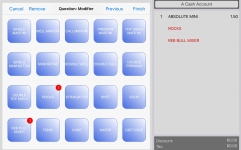
- On the Modifier screen, the navigation options include the Cancel, Remove, Previous, and Finish links.
- Select the Finish link when done selecting options from the Modifier screen.
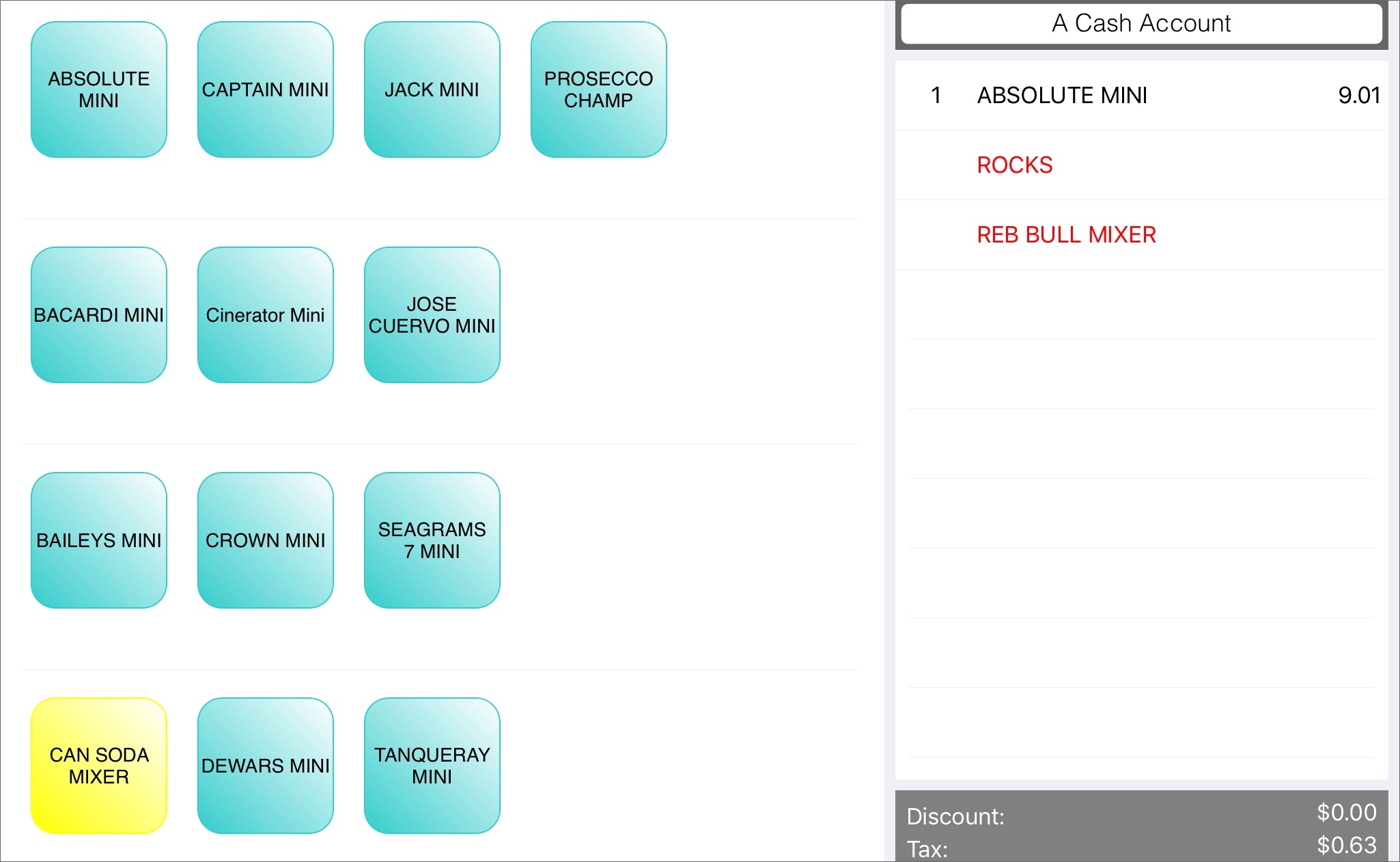
CPS Air will roll up an extra charge for a mixer into the price of the Absolut Vodka mini.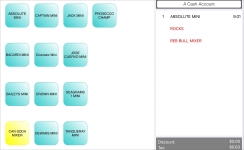
- To return to the main menu, select Level Up. Select the green Finalize button to complete the order.
To add modifiers to a modifier
In this example, the customer orders an entree with several special requests. The order involves multiple modifiers, and even an additional level of detail to specify how the side order of a potato should be prepared.
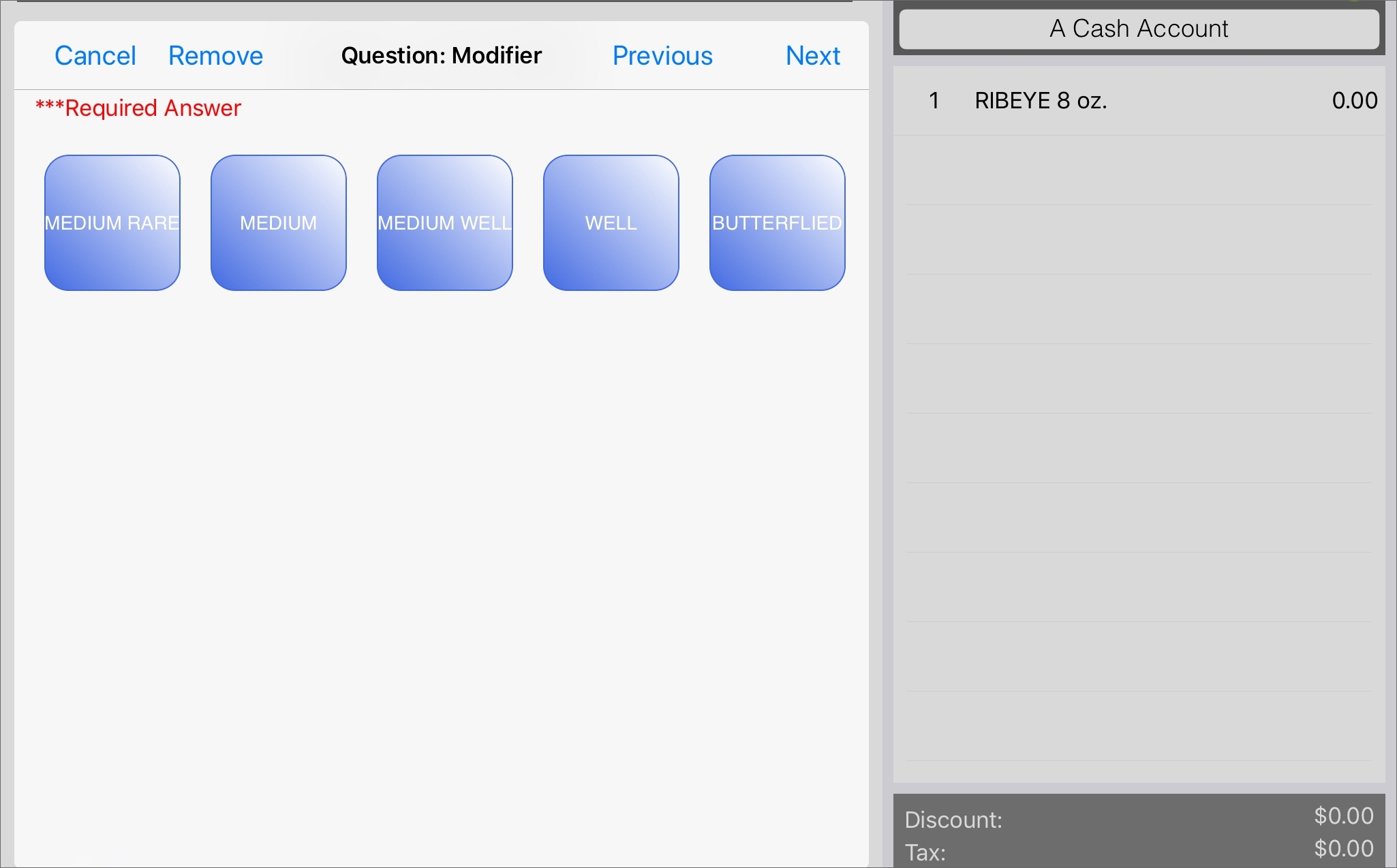
- First, select the entree, shown here as a ribeye steak. The Modifier screen will display options for describing how the customer would like the entree cooked.
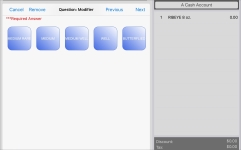
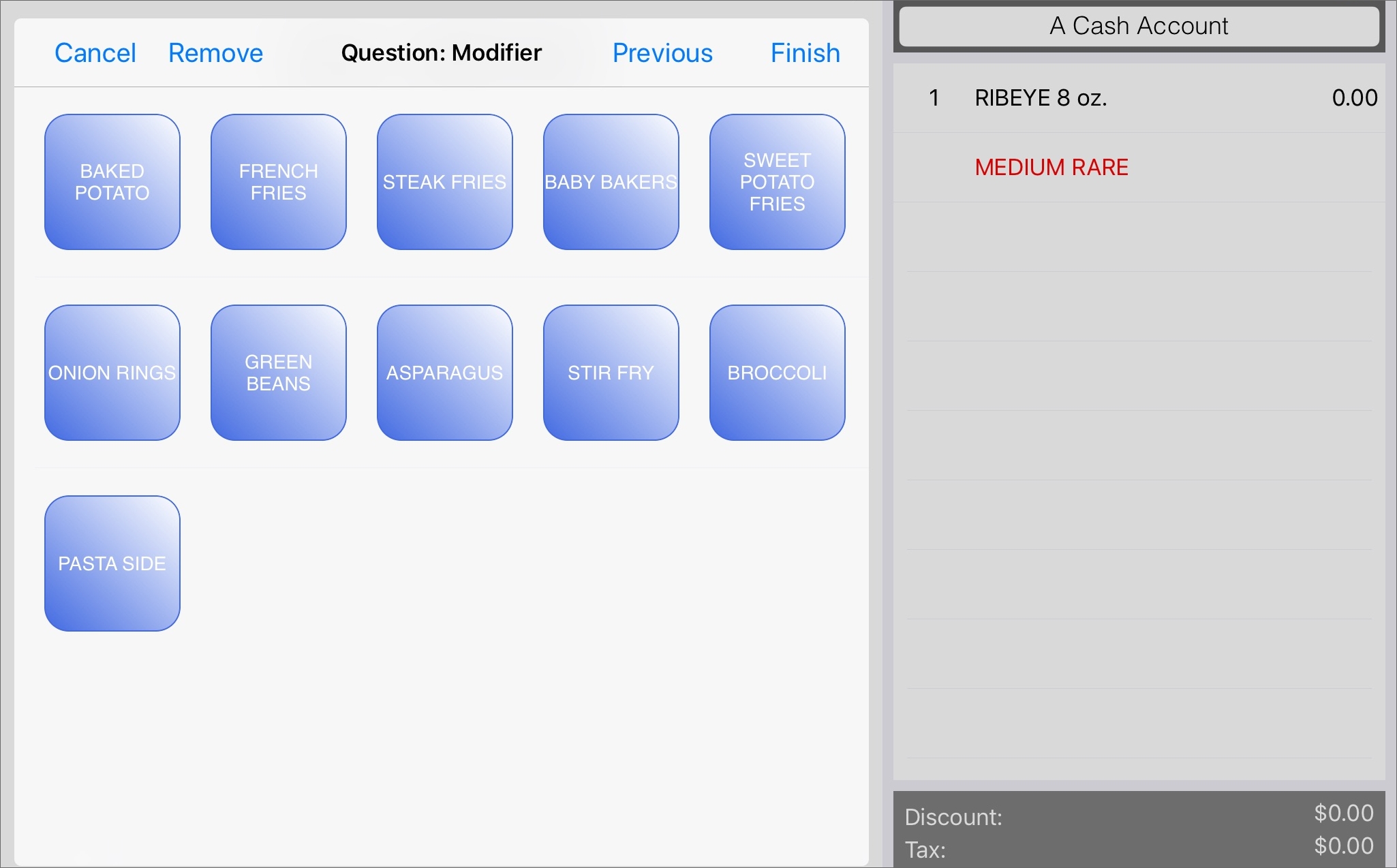
The customer requested medium rare, shown here in red text. The entree also includes the option for sides.
The next Modifier screen will display the side options, such as pasta, potatoes, and vegetables.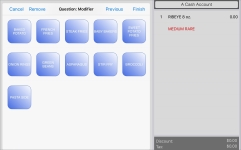
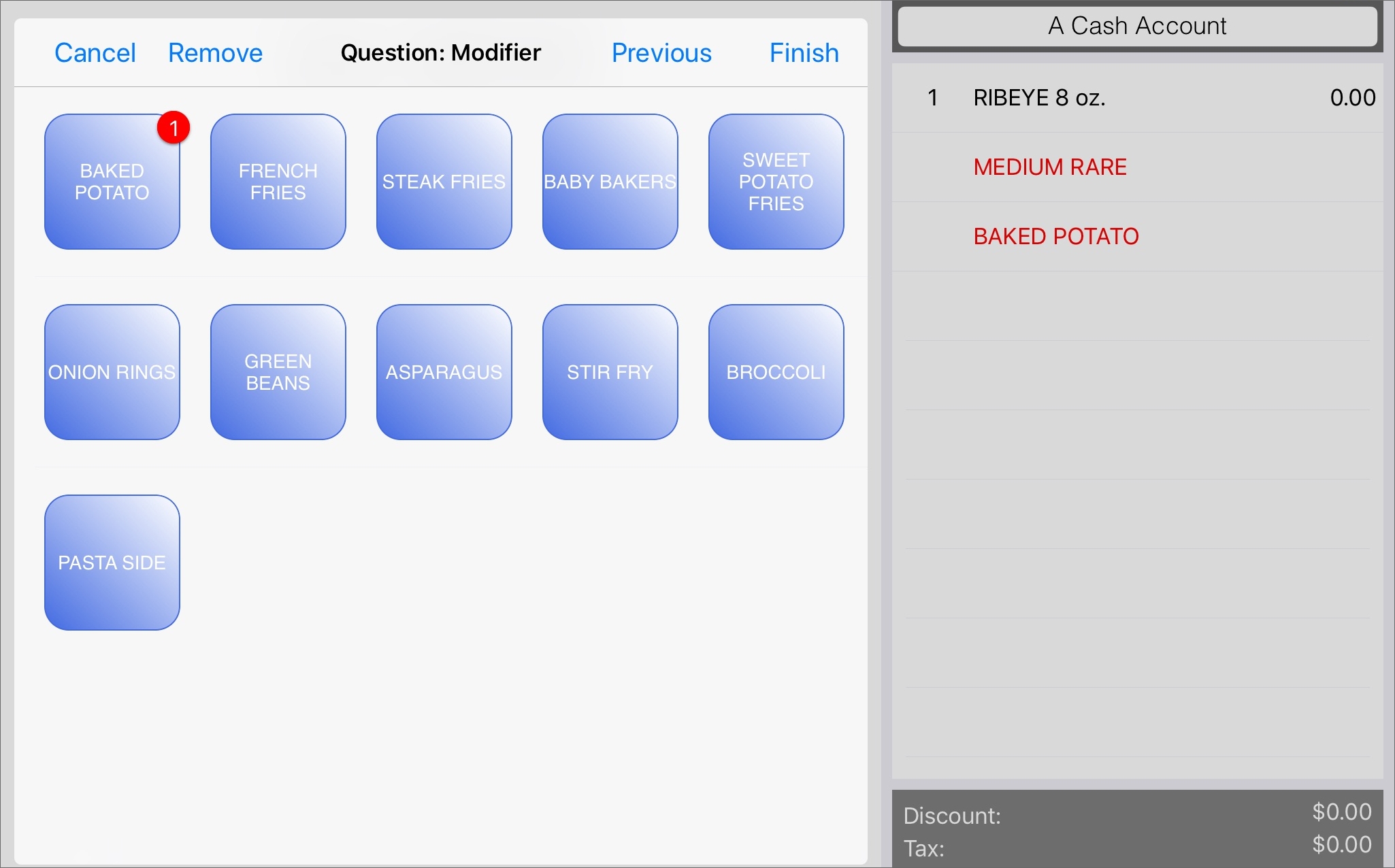
- Select which side or sides the customer would like.
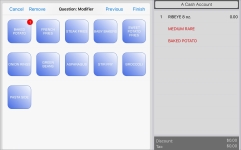
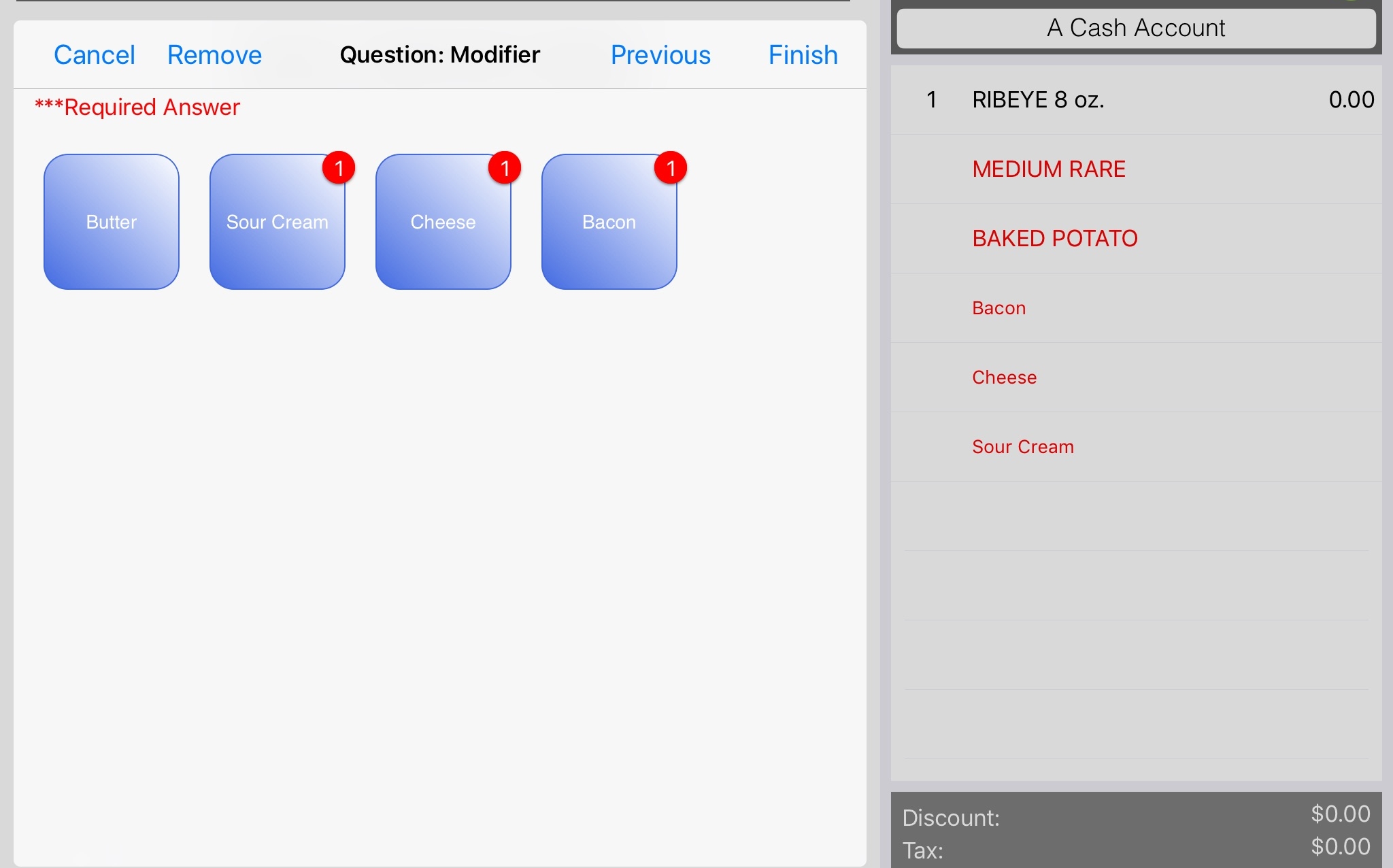
- Some sides, such as this baked potato, will trigger another screen of modifiers for specifying how to prepare it.
In this case, the customer orders a loaded baked potato with bacon, cheese, and sour cream.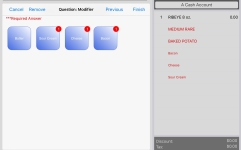
Remember the Modifier screen provides the options of Cancel, Remove, Previous, and Finish to help navigate, select, or change modifiers.
After selecting the modifiers, select the Finish link to return to the main Sales screen to add more items or finalize the sale.
Related Topics
To see how to remove an item, jump here>>
To see how to edit a modifier, jump here>>
To learn how to delete a modifier, jump here>>