Finalizing a Members Account Payment in CPS Air
The Members Account button is only enabled if you are working with a member previously registered in your Club Prophet system. After you have selected the Finalize button at the bottom of the tab, do the following:
- Select the Member Account button from the pop-up list. The Members screen displays.
Note: The Members Account button is only available if this is a member in your system.
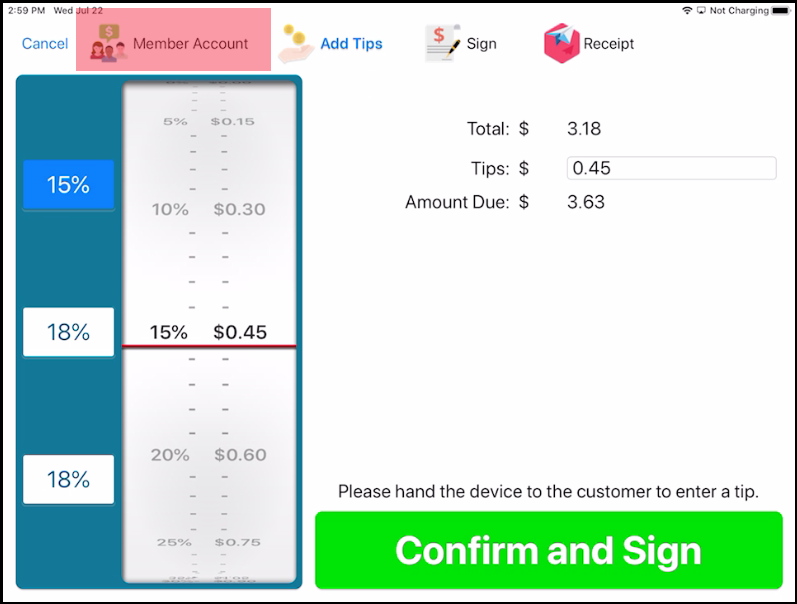
Note: A default tip can be set in the Tools | Options | Reference Tables | Terminal Information | iOS Setting tab, then scroll down to Tips and Gratuity.
- Ask or hand the iPad to the customer to select a tip and then select the Confirm and Sign button.
- After the customer signs the iPad screen with their finger or a stylus, select the Accept button or the Accept Signature. The Receipt screen displays.
Note: If you’d like to disable the signature for the Member Account payment, go to the iOS Setting tab in Tools | Options | Reference Tables | Terminal Information, and scroll down to the Other Options section, and uncheck the Signature for Member Charge.

The Required signature checkbox in Payment Types does not work for disabling the signature.
-
Select the customer's preferred method of receiving the receipt:
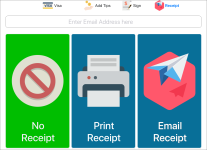
- No Receipt - select to when a receipt is not wanted and to advance back to the screen you started the payment process.
- Print Receipt (printer icon) - select to send the receipt to the printer.
- Email Receipt (paper airplane icon) - before you select this option, enter or double-check the email address of the customer in the email field at the top of the iPad screen, then select Email Receipt. The email will be sent using the template you set up for email receipts.
Note: If an email is not constructed correctly as in, there is not @ symbol or it doesn't end in a dot-something, for example, .com, an error message displays and you will need to re-enter the email address correctly; however, if an email is wrong, there is no way of knowing that it bounced and no way of retrieving that email.
The screen that you started the payment process displays again. The receipt will be printed or will be emailed accordingly. The customer's sale is now complete and will be available in the sales report under the Sale Lookup button.