Pay on Multiple Accounts
Some facilities use multiple accounts or databases that include, for example, a resort, a restaurant, and membership accounts with charges going to different places that need to be paid off separately.
So when your members get charged each month for these various changes, your back office may want to run a payment on an account that goes to more than one GL code. You need to set up using multiple accounts if this is the case.
For example, if you wanted to separate F&B, membership dues, and the golf charges.
To enable the multiple accounts
-
Go to Tools | Options | Sales Options | Sales. The Sales screen displays to the right.
-
Select the blue down-arrow to the left of the Course Specific Options. The options display.
-
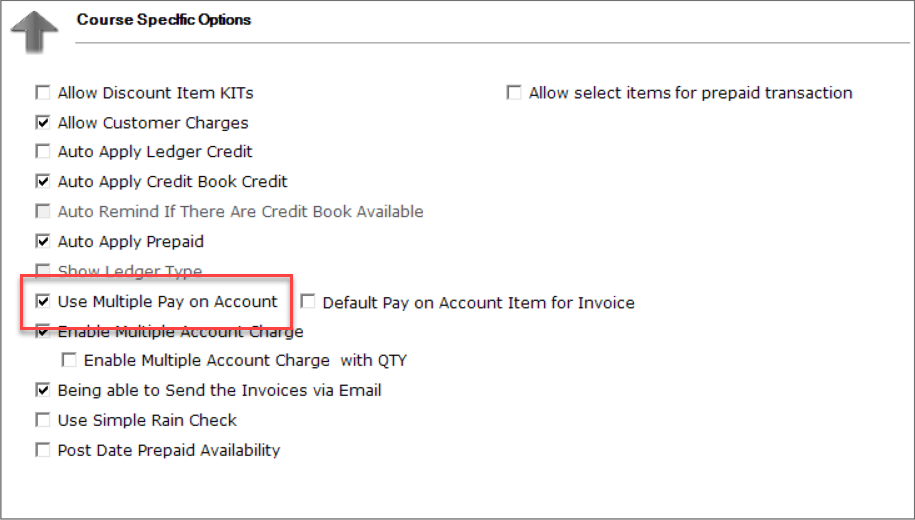
Select the Use Multiple Pay On Account checkbox.
Note: When enabled, this option allows your Pay on Accounts pop-up to contain many different categories on which to pay. These categories are created in the Inventory module. See instructions below to learn how.
-
Select the Save button in the lower right corner.
BEST PRACTICE: You should immediately close the software and login again for the changes to take place.
Create new sales categories for inventory items
Multiple sales categories are needed if you want to assign different GL codes based on the different pay-on-account items. The items would be required to be assigned to the Item Type of Pay On Account in the Inventory module.
Note: You must have permissions to use the Inventory module to do the next steps.
-
Go to Inventory. The Inventory screen displays.
-
Search for an item or create a new item.
-
Double-click an item from the list to edit it, or click Add to add a new item. The Sales Category screen displays.
-
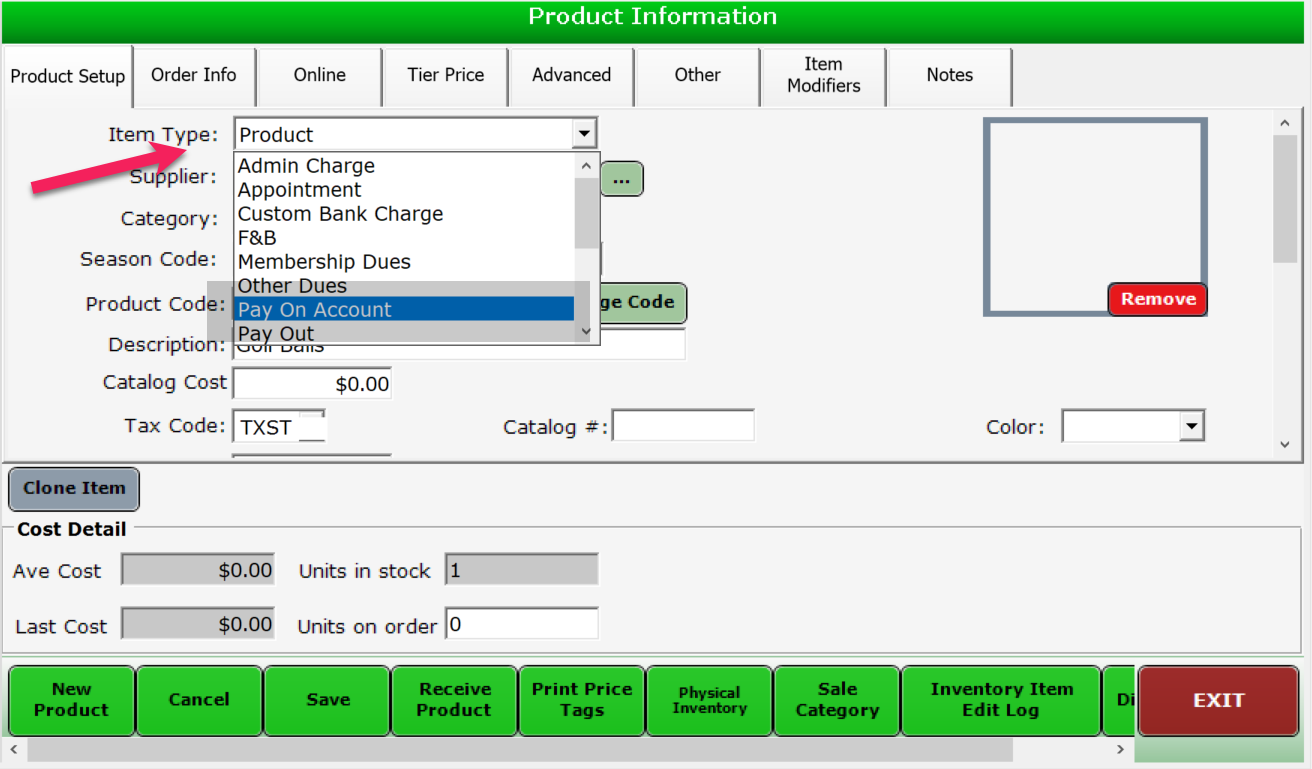
In the Item Type drop-down menu, you must select Pay On Account.
-
Select a supplier from the Supplier drop-down.
-
Select a category from the Category drop-down. Note: If you are setting up multiple pay-on accounts that need to go to different GL Codes, you will need to set up individual sales categories and select the proper sales category when creating your items.
-
Enter a unique code in the Product Code field.
-
Enter a description into the Product Description field.
-
Select a tax code from the Tax Code drop-down if applicable.
Note: You can bypass the Retail Price section.
-
Set the Track Inventory button to NO.
-
Select the Save button at the bottom middle of the screen. Your pay on accounts item is now ready to use and will be displayed as a button when you select the Pay on Accounts button in the Sales module.
To set up the Sales Category
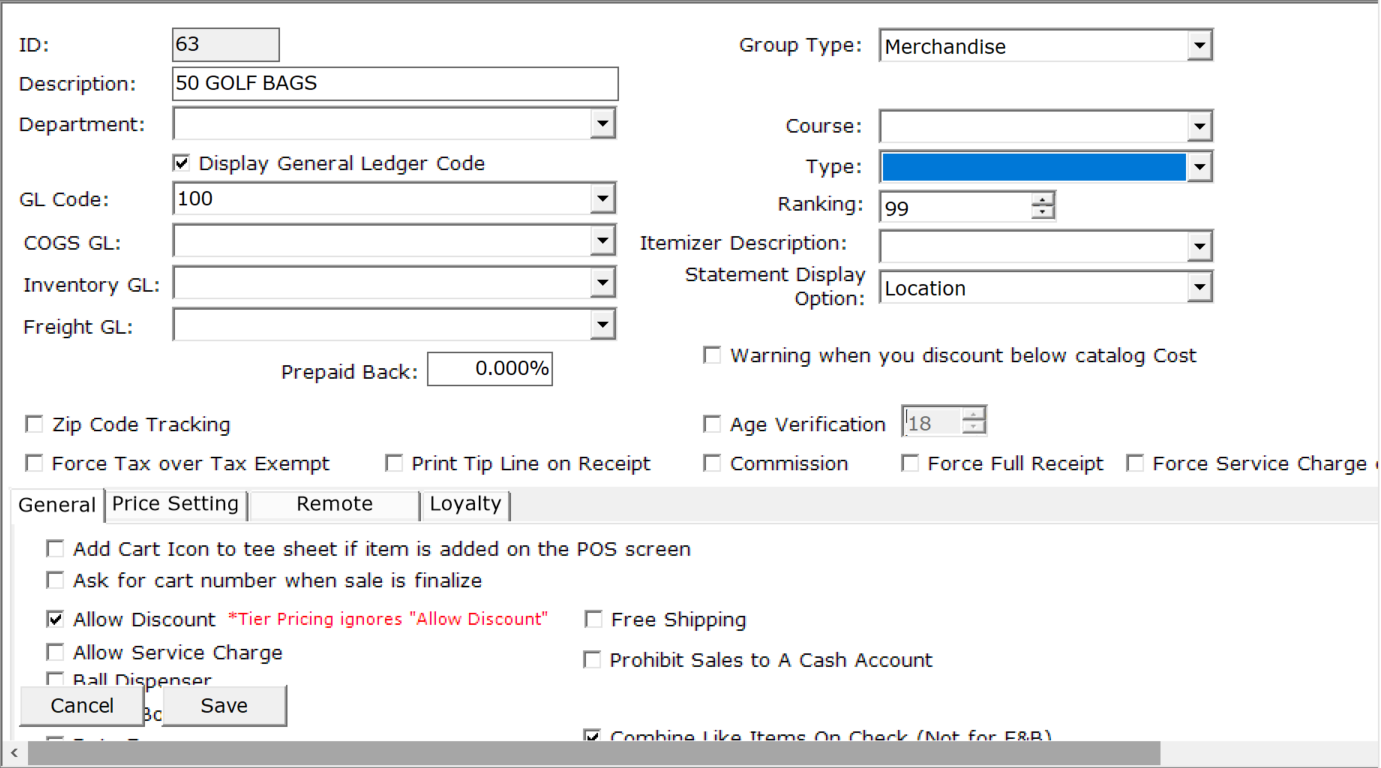
If the customer is looking to assign different GL Codes based on the different pay-on-account inventory items since GL Codes are assigned at the Sales Category level, for example, F&B, golf merchandise, and membership dues.
-
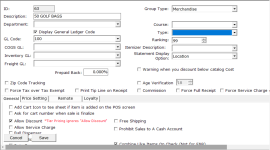
Go to Tools | Options | Reference Tables | Sales Category. The Manage Sales Category screen displays.
-
Click Add or Edit to edit a category.
-
Create a category with all the desired criteria.
-
Click Save.
Making a pay-on-account sale
Once the above setup is complete, when you go into the Sales module, pull up a customer account in the Sold To field, and click on Pay On Account button, a window will display with each of the payment on account item type items showing:
Related Topics