Added a start date for coupons found in the Web Store
In 3.100, you have the ability to have a start date for coupons. Previously, you only had an expiration date. In this way, you can keep your customers from using coupon codes as soon as they send them out.
To set a start date for your coupon
-
Go to Tools | Options.
-
Select Reference Table | Coupon.
-
Select Add or Edit an existing coupon from the list. The Coupon screen displays details.
-
To place a start date on the coupon, select the Redeem date range checkbox.
-
Select a start date from the From date field.
-
Select an end date from the To date field for when the coupon will stop being generated.
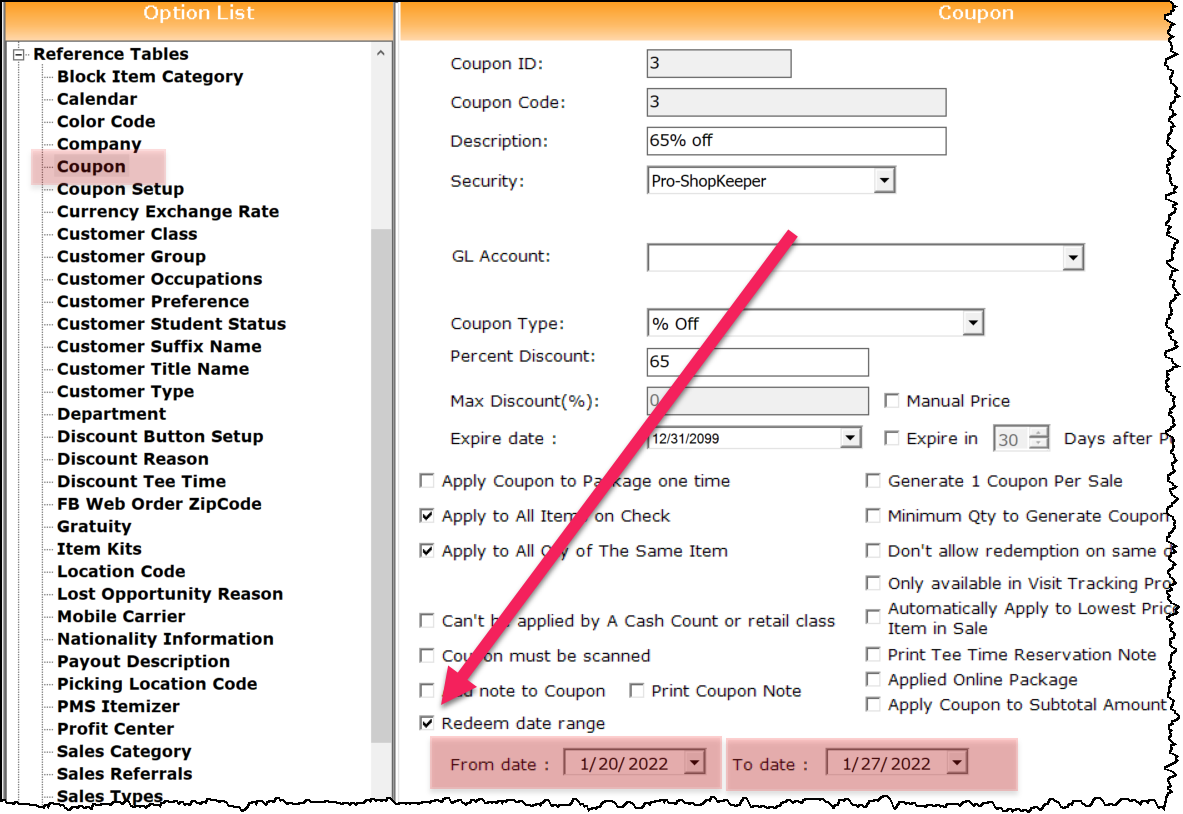
Note: The start date is when the coupon will start to be accepted, and the end date is when the coupons will stop being generated from a sale in the POS. The expiration date which is found in the Expire date in several fields above is when the coupon will no longer be accepted.
-
If you have added a new coupon, complete the other desired options.
-
Scroll to the bottom of this screen and select Save.
BEST PRACTICE: You should immediately close the software and login again for the changes to take place.
Now a coupon is generated during a sale. If you buy an item or an item in a particular sales category, the software will print out a coupon code at the bottom of the receipt. You can then use this coupon code on your next eligible purchase during the date range that was set up.
Shout out Stefan Duga @chq.org