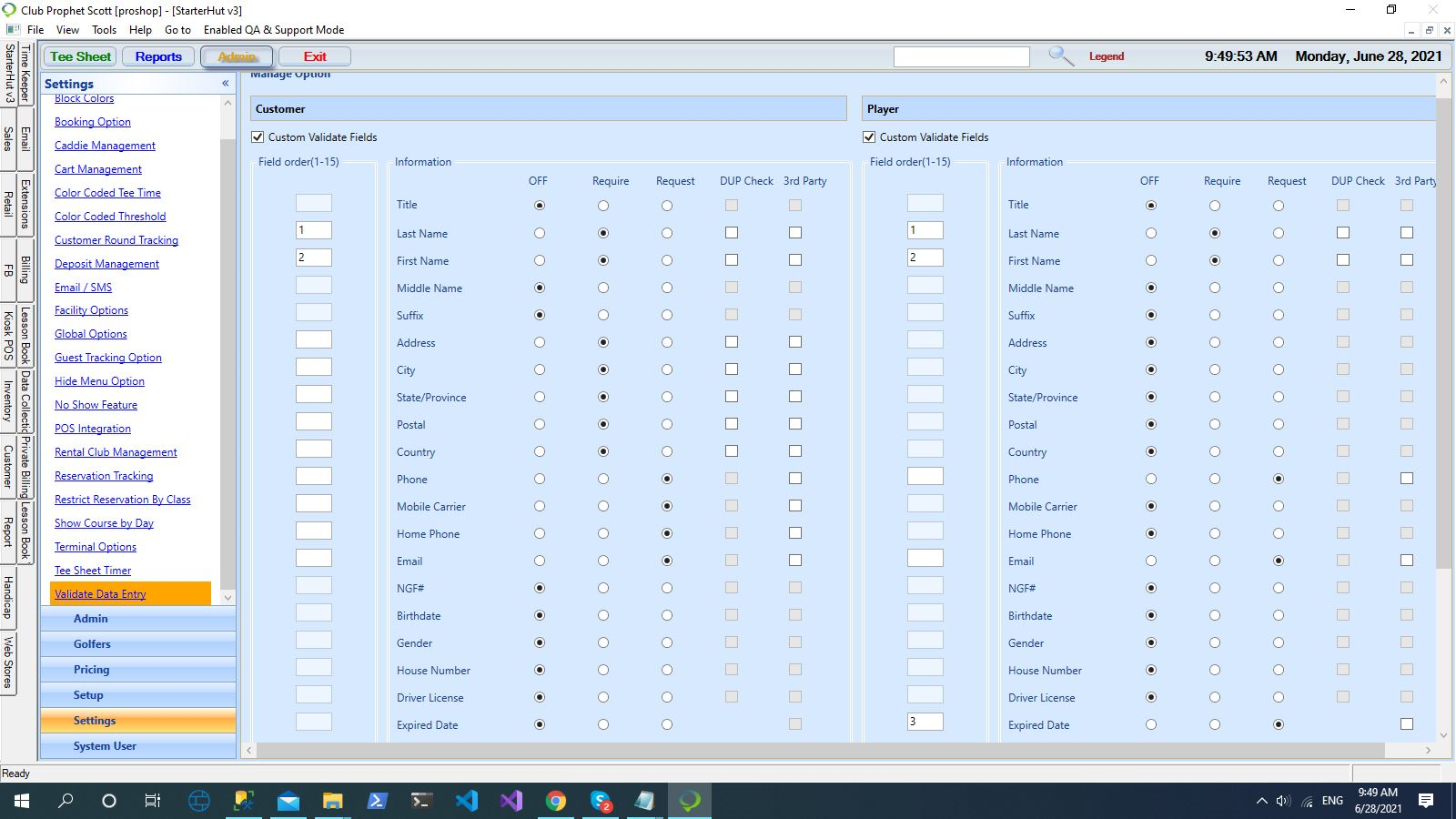
Added Off radio buttons to the customer Validate Data fields
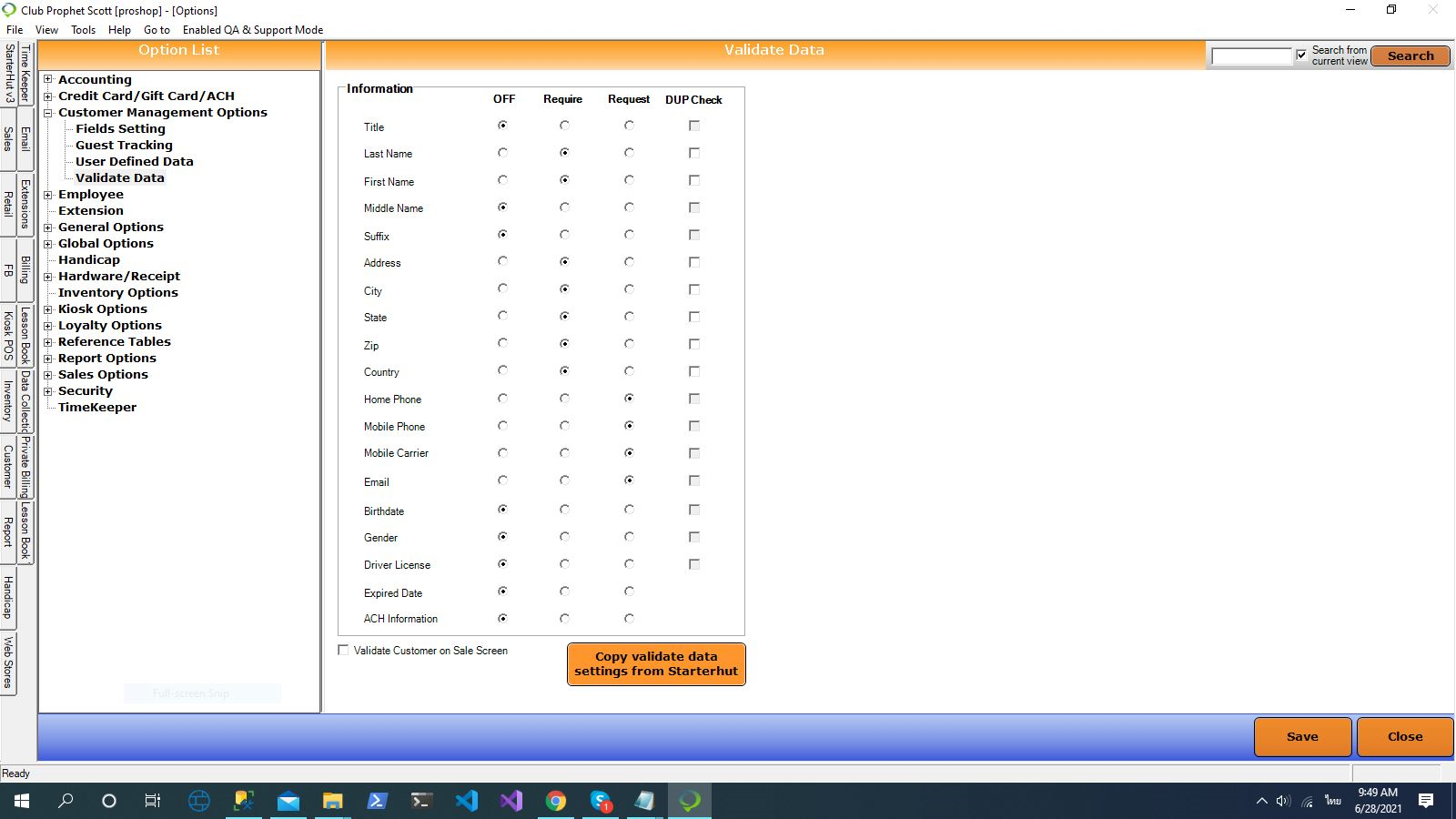
You have the ability in the 3.100 release to turn off individual fields, such as the zip code in the Customer Management options located in the Validation Data screen. Each field used for validation has an Off radio button, so you don’t have to see that field when creating a new customer. So, for example, if you do not need to ask for the zip code, you can turn that field off.
Note: This does NOT apply to creating a customer in Starter Hut as it has its own Validation Data management screen.
Shout out to James Mccormick @fss.com
To turn off a specific field for validation
Note: If you want to use the same settings from Starter Hut, select the Copy Validate settings from Starter Hut button at the bottom of the screen.
-
Go to Tools | Options| Customer Management Options | Validate Data. The Validate Data screen displays.
-
Select the OFF radio button for each of the information fields you would not like to collect. For example, select OFF to the right of the Title radio button.
-
Select Save from the right lower corner of the screen. Updated completed displays at the bottom to the left.
-
Select Close then shut down the software and restart for the changes to take effect. The next time you create a new customer, the fields you set to off will not appear.
To set validation fields in Starter Hut
-
Go to Starter Hut.
-
Select Admin | Settings | Validate Data Entry - you may have to scroll down to find. The Manage Options screen displays.
-
Select all the fields that you want to validate in both the Customer and Player sections.
-
Select the OFF button to turn that field off completely.
-
Select the Update All button at the bottom of the screen.