Added a special note modifier text box
In the 3.100 release, a Special Note modifier button was added. When this button is pressed, it displays a field with the cursor at the ready when the item is selected. If the majority of your items receive special notes, this newly added feature to the system should enhance your workflow. This option needs to be set up in the Inventory module for your food items by enabling the Show other text option in the Modifier Setup screen.
To set up the special note modifier text box
On a PC-terminal running POSExpress, log in as someone with permission to open the Inventory module and do the following:
-
Go to Inventory.
-
Select the Modifier Setup tab on the right side of the screen near the top. The Modifier Details screen displays and a list of modifiers display in the list to the left.
-
Add a modifier or double-click a modifier from the Modifier Text list in the left-hand column.
-
Select the Add Choice button in the lower-right corner. The Item Modifier pop-up displays.
-
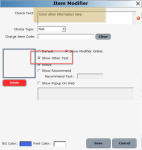
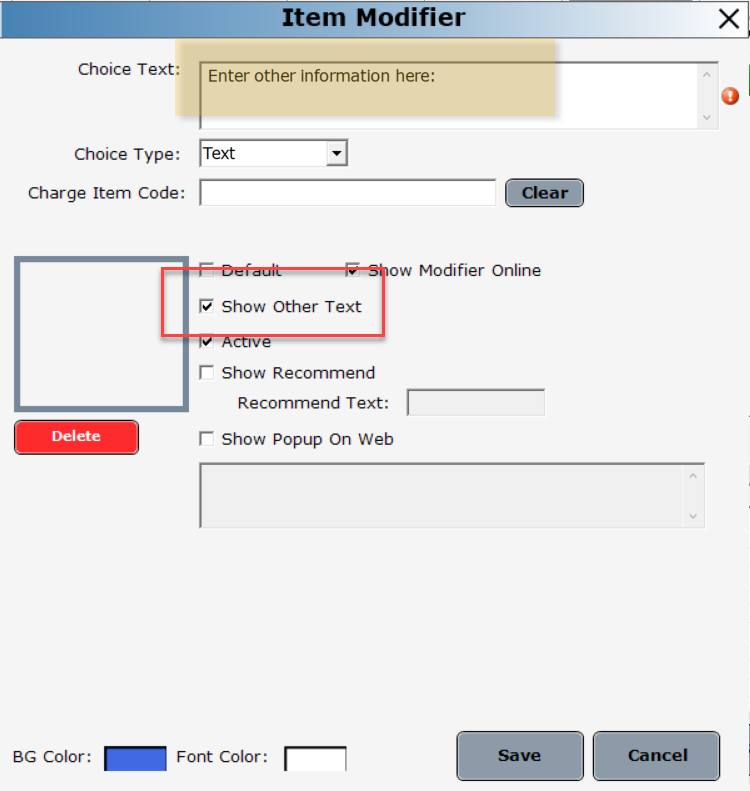
In the Choice Text field, enter a prompt for the type of text you want to capture for this item.
-
Select the Show Other Text checkbox.
-
Make any other necessary changes, then select the Save button. The text item is added to the list.
-
Select Save again. You can now use the special text note feature for this item.
-
Repeat this for each item you want to be able to add a special note for.
-
Select Exit when you are done.
BEST PRACTICE: You should immediately close the software and login again for the changes to take place.
Shout out to Emma Depe (dezzutti)
Related Topics
-
How to enter text-based notes or special instructions for modifiers
-
How to create a custom background color for selected modifiers