Enhanced the Edit Modifier functionality in the F&B module of POS
If you need to edit just one modifier, you no longer have to go through all the modifier choices just to edit one selection in the 3.100 release. We have enhanced the Edit Modifier functionality to allow editing of specific modifiers within the Food & Beverage module of CPS v3.
To edit a modifier
These steps start after you have already added an item that contained modifiers in F&B. So starting in F&B with that situation, do the following:
-
At the order screen of F&B, select the food item listed to the left with the modifiers under it.
-
Select the Edit Modifiers button. The modifiers menu displays the first modifier added.
-
You can select a different modifier for this OR if you need to edit a different modifier, click Next until you find the one that needs to be updated.
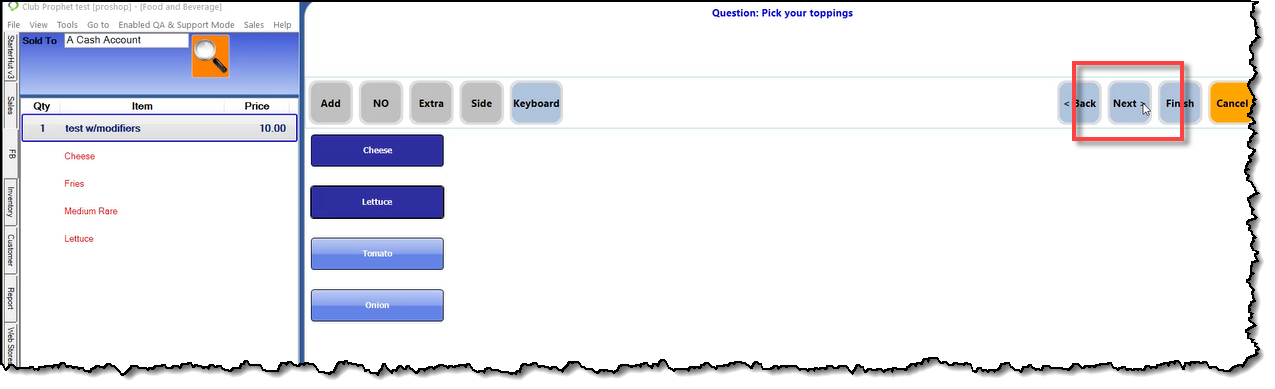
Note: If you need to go back while on this screen, use the <Back button to go to the modifier page needed.
-
Make the necessary changes and select Finish when done. The changes are reflected in the order screen to the left.
Shout out to Steve Saulsbery @lafayetteco.gov
Related Topics