Automatic pop-up to record associate sales commission for eligible items
To avoid missed commissions for your staff, we have added an Associate Box pop-up for an eligible commission item in the finished sale process which is set up in Options.
To set up for the auto pop-up commission process
If you would like the Associate box to automatically pop up so that the employee does not forget to attach the associate to the sale, make sure all set up is completed first:
-
Set up the category for the item to be flagged as commission eligible in Inventory.
-
Set up the commissions attached to employees by category in Options | Employee | Employee Setup.
-
Check the Force employee? box in Options | Sales Options | Sales by Terminal | Force Options.
-
Check the Allow Associate? box in Options | Employee | Classification.
See the following subtopics for more details on each setup item above.
Set up the category for the item to be flagged as commission eligible
Complete this section first for the items to display in the commission category list in the employee set up in the next section below.
-
Go to Tools | Options, select Reference Tables | Sales Category. The Manage Sales Category list displays.
-
Search and select the commission-eligible item or service, or start a new category by selecting Add to the right. The Sales Category screen displays to the right.
-
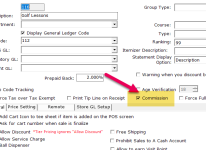
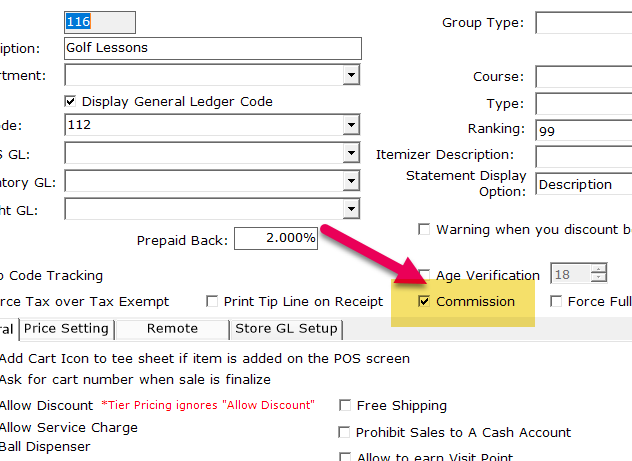
Select the Commission checkbox in the middle of the screen.
-
Select Save at the bottom middle of the screen.
-
Select Close to the bottom right of the screen.
Set up the commissions attached to employees by category
Note: You need to set the category as commission in the section above before it is available for commission or for specific commission percentages on items in the drop-down field of the Commission by Category in the steps below.
-
Still in Options, go to Employee | Employee Setup. The Employee Setup screen displays and a list of your employees.
-
If need be, make sure you have the correct store selected from the Store drop-down at the top-right, or just select ALL to display all employees in all stores.
-
Double-click the employee eligible for commission. Their information displays.
-
Select the Commission checkbox and enter the commission percentage amount in the box to the left of the checkbox if this is a flat percentage across all eligible items, or you can set it by category in step 5. If you choose a flat percentage, that percentage will be applied to all categories that are flagged for commission as set in the section above.
Note: You can use the up and down arrows to increment the amount by 10, or you could type the percentage manually.
-
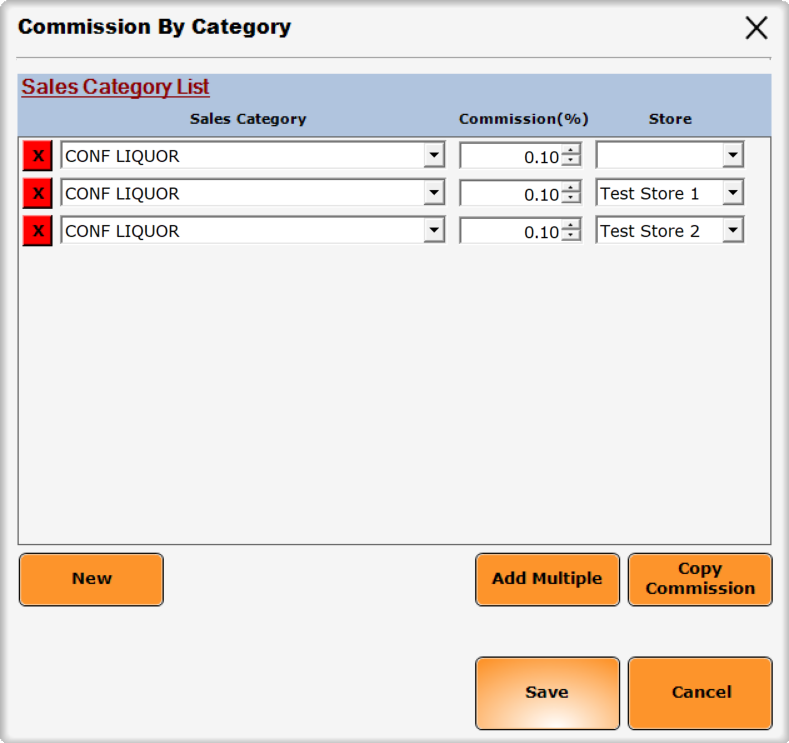
(Optional) If you would like to assign different commission percentages to different categories, select the Commission by Category button to the right. A Commission By Category pop-up displays.
-
Select the New button. A Sales Category row displays.
-
Select the category from the drop-down list. NOTE: This comes from working the steps in the section above.
-
Enter the commission percent by using the up and down arrows. NOTE: You can type a commission in as long as it is in decibels, that is 0.xx.
-
If you have more than one store, the Store drop-down displays to the far right. Select the store as needed from the drop-down as needed. If you need to select more than one store, see step 10 below.
-
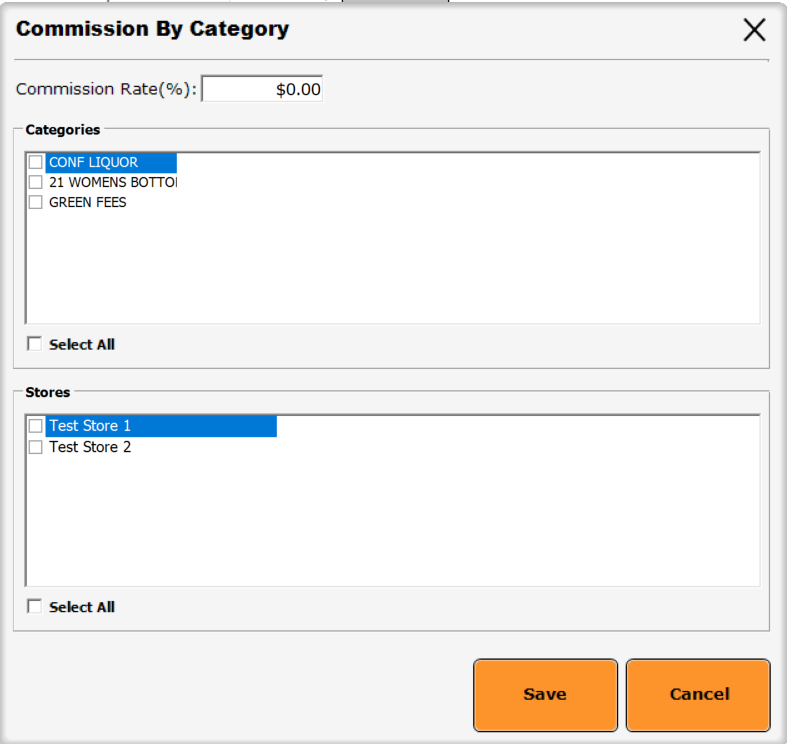
If you have more than one store or more than one sales category to apply this commission for this employee, select the Add Multiple button. A pop-up displays.
-
Select Save. Multiple rows display for each selection that you made.
-
If you would like to copy this same commission set up for another employee, select the Copy Commission button. The Copy Commission By Category pop-up displays with the current employee listed in the From field.
-
In the To drop-down list, select the employee for which you want this commission to be applied.
-
Select Copy to copy this commission to the employee selected.
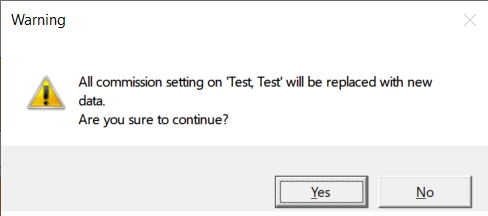
Note: Select Copy and Delete ONLY if you want to replace the employee’s commission with this new commission setting. This Warning box displays:
-
When you finish setting up all commissions, select the Save button. The Employee Setup screen displays.
Note: If you haven’t set up the pay for this employee, in the Job Classification section, select the classification(s) needed. Then enter the payment in dollars and cents for each job classification selected into the Pay Rate pop-up box.
-
Scroll down and select Save in the bottom middle of the screen. The Manage Employee screen displays again.
Set up to force the Associate screen to pop up without a prompt
-
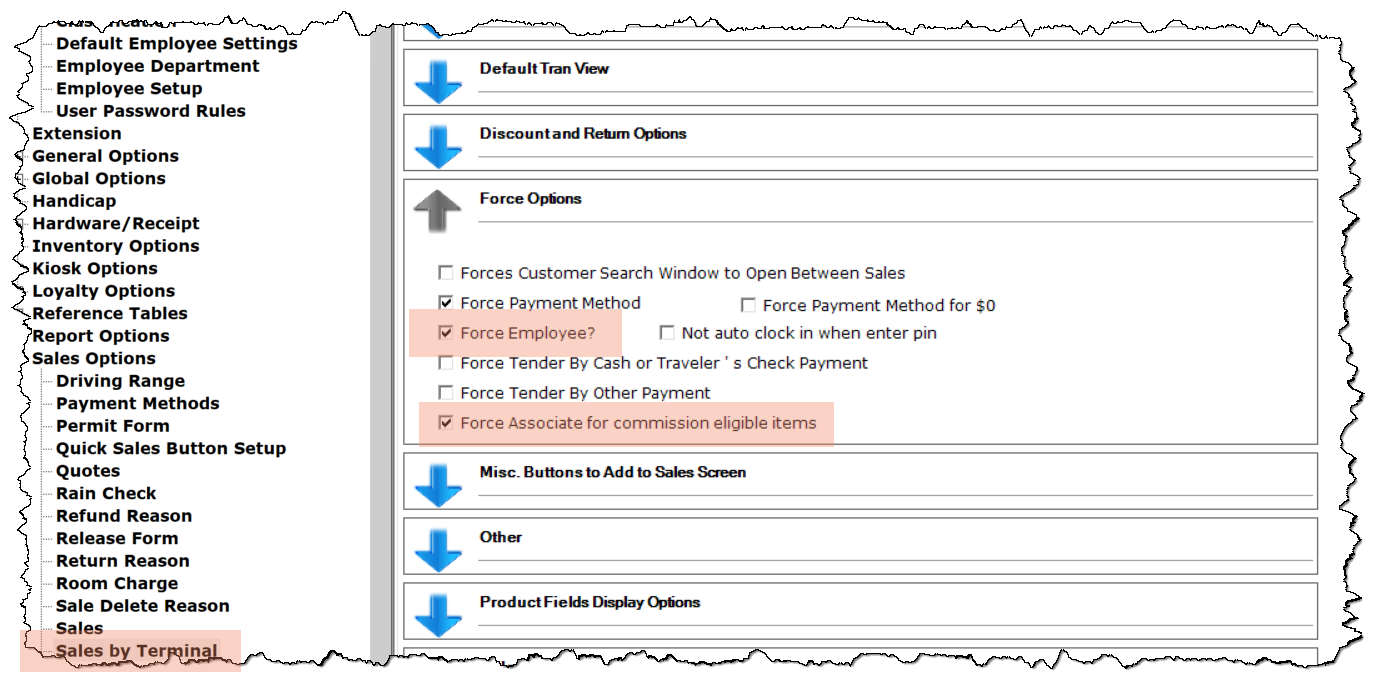
Go to Tools | Options | Sales Options | Sales by Terminal. Blue arrows display to the right.
-
Select the Force Options down-arrow. The box below it displays.
-
Select the Force Employee? checkbox.
-
Select the Force Associate for commission eligible items checkbox to force the Associate screen to pop up without a prompt.
Note: If you don’t check this, you will have to select the Associate button and the actual associate’s name on the next screen.
-
Select the Save button in the lower right corner of the screen. The words Update Completed display towards the left corner.
Note: You do not need to select Close because there is another setup to do in Options.
Set up to Allow Associate
-
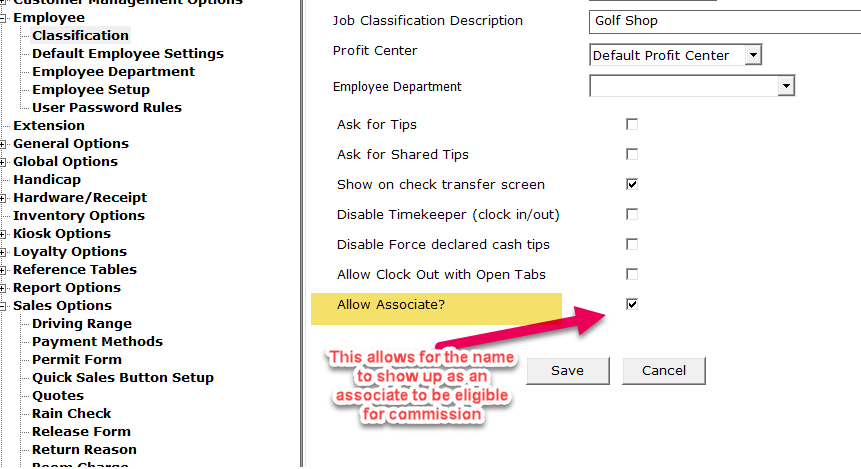
Still in Options | Employee | Classification. The Job Classification list displays.
-
Select a job classification or add a new one. The Classification screen displays.
-
Check the Allow Associate? box.
-
Select Save right below it.
Note: You do not need to select Close because there is another setup to do in Options.
BEST PRACTICE: You should immediately close the software and login again for the changes to take place.
After finishing the setup options above and restarting the software, your selected employee categories will be prompted on eligible commission sales.
To sell a commission eligible item
Before starting, make sure that you have set up everything above and know your PIN as the eligible employee for commissions.
-
Go to Sales.
-
Search and select an item that is eligible for commission.
-
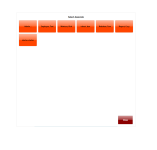
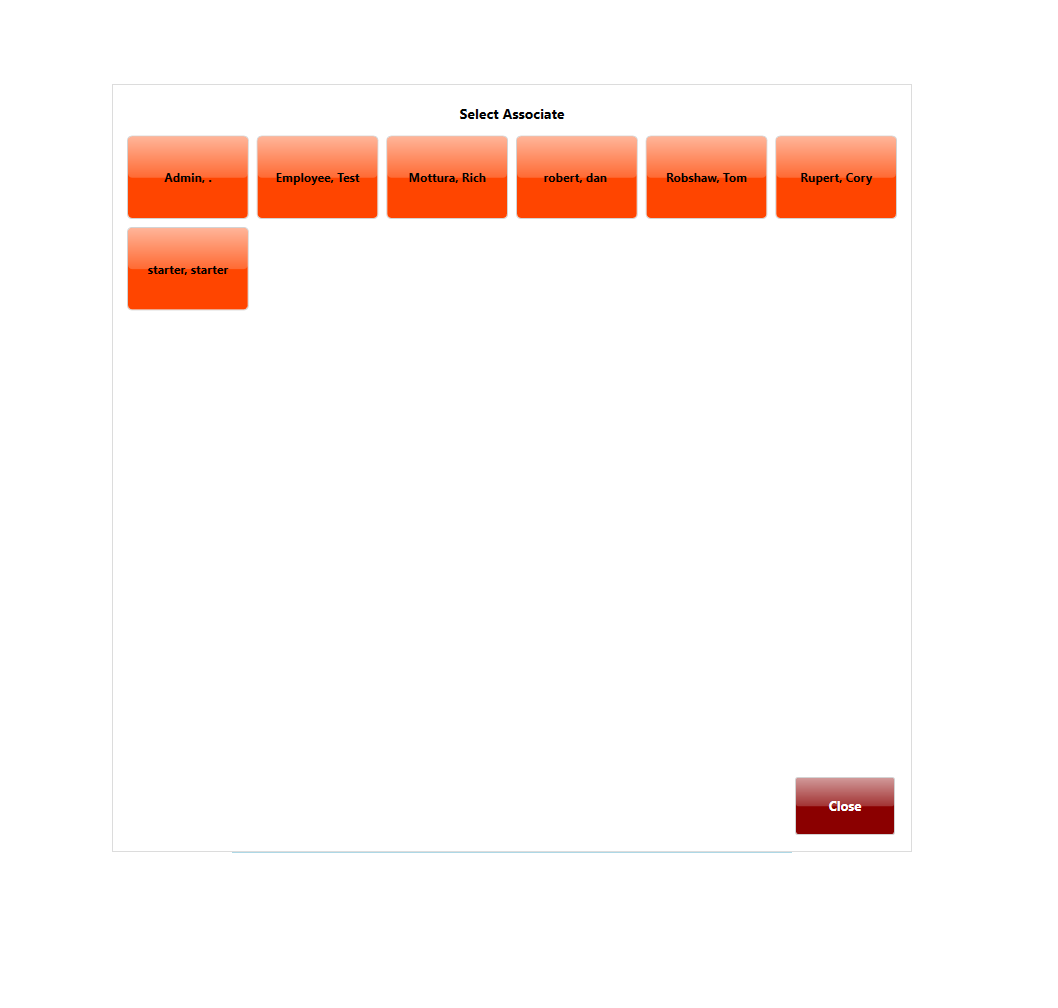
Select Finalize Payment. The Select Associate screen displays with button(s) displaying the name(s) of the associate(s).
-
Select the button for the name of the associate. The Select Employee PIN pad displays.
Note: If you click the Associate button on the pinscreen and no associates show up, make sure you go to Tools | Options | Employee | Classification and select any job classifications that apply to the employees and enable the Allow Associate? checkbox.
-
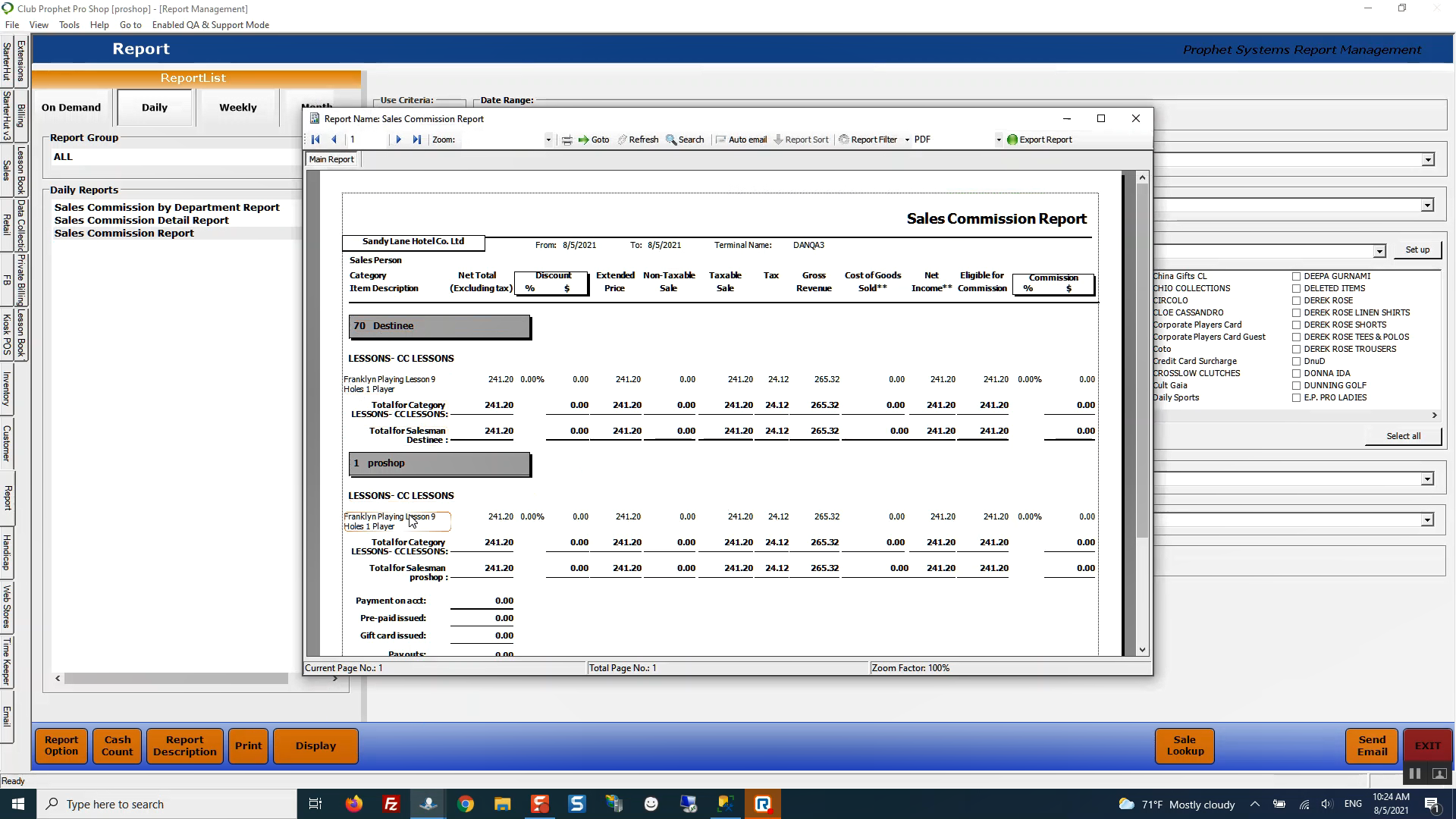
Enter your PIN and press Enter. The sale is final, and the commission has been given to the associate. You can find this information in the Sales Commission report.
To run a report showing commission for each eligible employee
-
Go to Reports.
Are you running this report for the first time? If so click, yes>>
-
Select the time-frame tab under which you assigned the report: On Demand, Daily, Weekly, Monthly, Yearly. The reports listed under that tab display.
-
Select the Sales Commission report. The settings display to the right for you to update.
Note: Other sales commission type reports are: Sales Commission by Department, Sales Commission Detail, Sales Commission Total.
-
Select the desired filters for this report.
-
Select Display or Print to run the report. For more details on this, click here>>
Example Report
Shout out to Colin Reid @sandylane.com