Ability to control reservation tracking
In 3.100, you can track by selection when the following actions happen to a reservation:
-
Moved
-
Copied
-
No show
In addition to the above, you can track reservation, block, change player, and cancellations by Employee PIN using the Reservation tracking option.
Also, have the option to track events by pin and track delete time by employee pin. But not any of the three above.
One more thing - reservations can be MOVED, COPIED, and NO SHOW’d without credentials. In other words, when ANY of these happen, the CELL HISTORY shows the LAST logged in person as having done the action. In which case, there is NO AUDIT trail as to who did what.
To set up reservation tracking
- Go to Starter Hut.
- Select Admin | Settings.
- From the bottom-left of the panel, select Reservation Tracking. The Reservation Tracking options displayed to the right.
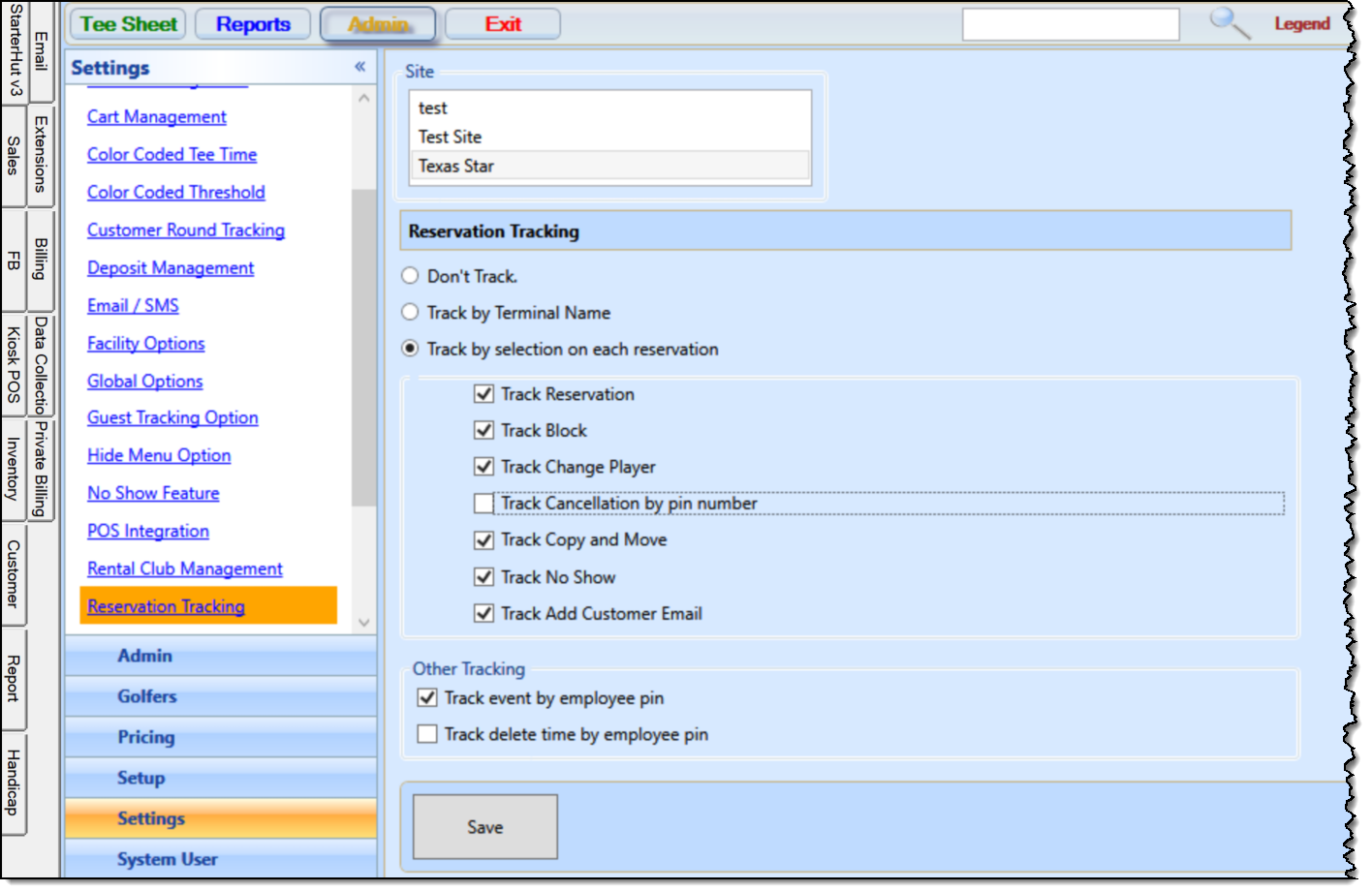
- Select the course you want to track for reservations from the top.
Note: If you select Don’t Track, the cell history only shows the last person who was logged in who was doing the action, since the software does not prompt for their PIN/identification when the action is done.
- Select the Track by selection on each reservation radio button. The checkboxes below it are enabled.
- Select the checkboxes in this section that you want to track. The options are as follows:
- Reservation
- Block
- Change Player
- Cancellation by PIN
- Copy and Move
- No Show
- Add Customer Email
- Select Track event by employee PIN if you are working with events.
- Select Save at the bottom of the screen.