Enhanced dynamic pricing with “Guest Of”
We added a way of handling "Guest Of" with dynamic pricing in the 3.100 release.
We also added the option to associate a Guest Of reservation with a Cash Account instead of a Member name to work with dynamic pricing. Some courses need to use this option to ensure that loyalty points are correct.
To set up dynamic price rates for the “guest of” golfers
Note: You should already be set up for Dynamic Pricing prior to setting this up. To learn more about dynamic pricing, click here>>
-
Go to Starter Hut.
-
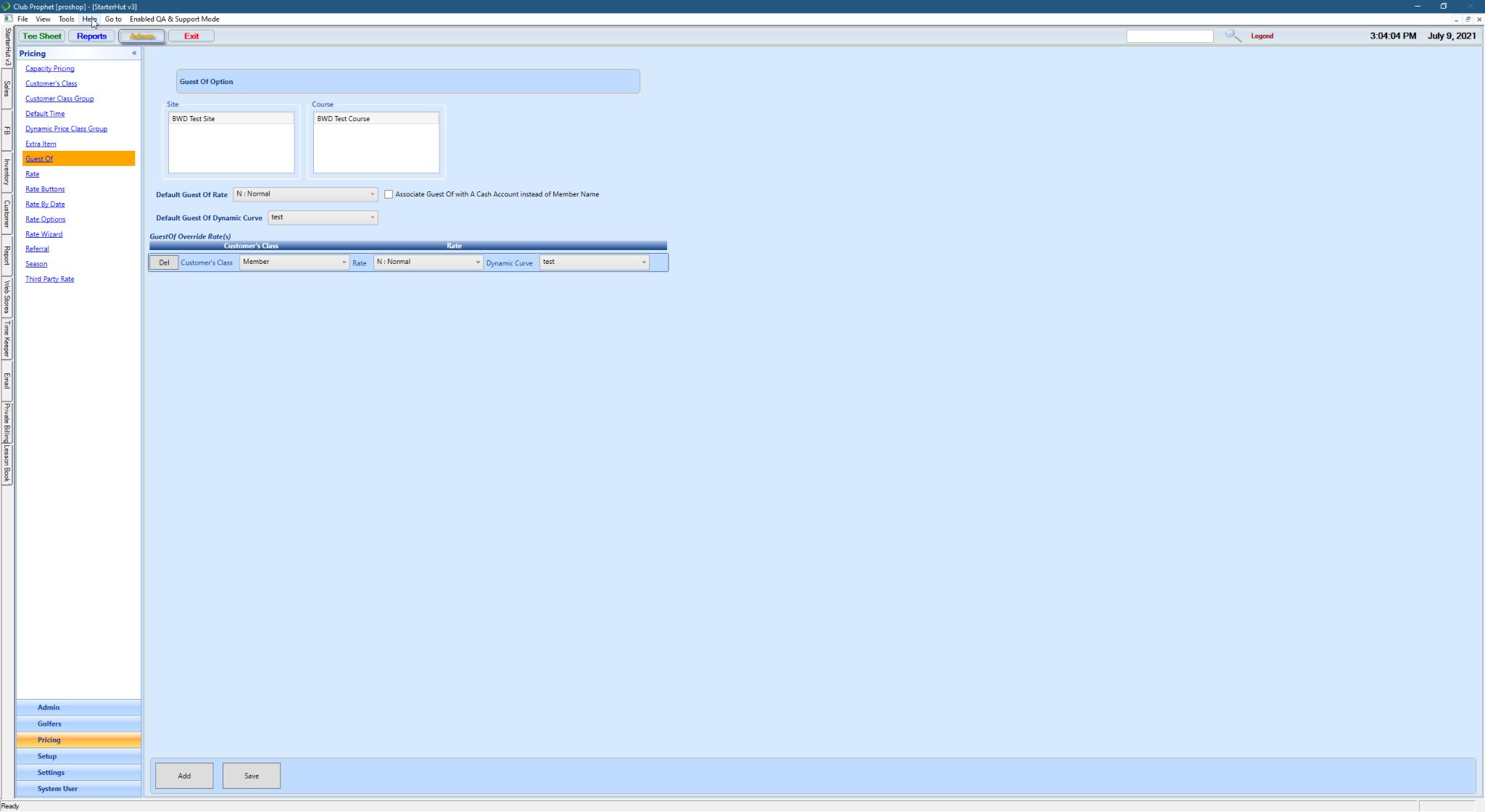
Select Admin | Pricing | Guest Of. The Guest Of Option screen displays to the right.
-
If needed, select the Site and Course to which this applies.
-
Select the Default Guest of Rate from the drop-down and then select the Associate Guest Of with a Cash Account instead of the Member checkbox.
-
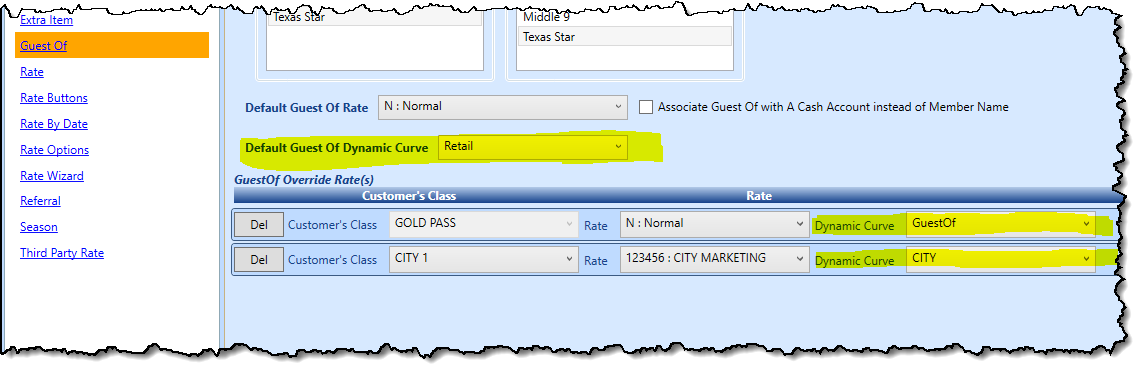
From the Default Guest Of Dynamic Curve drop-down select the default curve.
Note: The dynamic price companies sometimes refer to these curves as the way the price dynamically fluctuates for each group.
-
If you want to set other types of rates for certain customer classes for your guest of players, in the GuestOf Override Rate(s) section, there should be a blank row with the following fields to complete or select Add first then:
-
Select the Customer’s Class and Rate from the respective drop-down fields.
-
From the Dynamic Curve drop-down, select the dynamic rate package. Note: This drop-down is populated from the Dynamic Price Class Group found in Starter Hut | Admin Pricing | Dynamic Price Class Group. (See the Setting up dynamic pricing class group in Starter Hut section of Dynamic Pricing topic.)
-
If there was not a blank row of the above fields OR you need to add another override rate for guests, select the Add button below. A new blank row is added.
-
Continue to add override rates as needed for your customer classes using steps 6 and 7 above.
Note: You don’t need to set up every customer class only the ones that are going to be different.
-
When you are finished, select the Save button at the bottom of the screen. Update complete displays.
To hear and see our first ever podcast on this new feature, click here>>