How to enter text-based notes or special instructions for modifiers
You may have some modifiers that require a special text to be typed in, or you may have to add special instructions to certain items before it gets sent back to the kitchen. When ringing up items in CPS AIR there is a spot in the Modifier screen to select Keyboard/Notes option to add in these special instructions.
In Inventory, if the Modifier Type drop-down of Text is selected, you can type anything in CPS Air Sales screen.
Tip: Setting up and using modifiers has a distinct flow and a set method especially when using them. Set them up and use them as instructed for the best results; it is easy to get lost when not following the prescribed instructions and methods.
To add the Modifier type into your Inventory
- Go to Inventory.
- Select the Modifier Setup tab from the top-right part of the screen. The Modifier Detail screen displays.
- Add a modifier or double-click a modifier from the Modifier Text list in the left-hand column.
- In the Modifier Type drop-down list, select Text. This will allow you to enter text via a keyboard for this modifier.
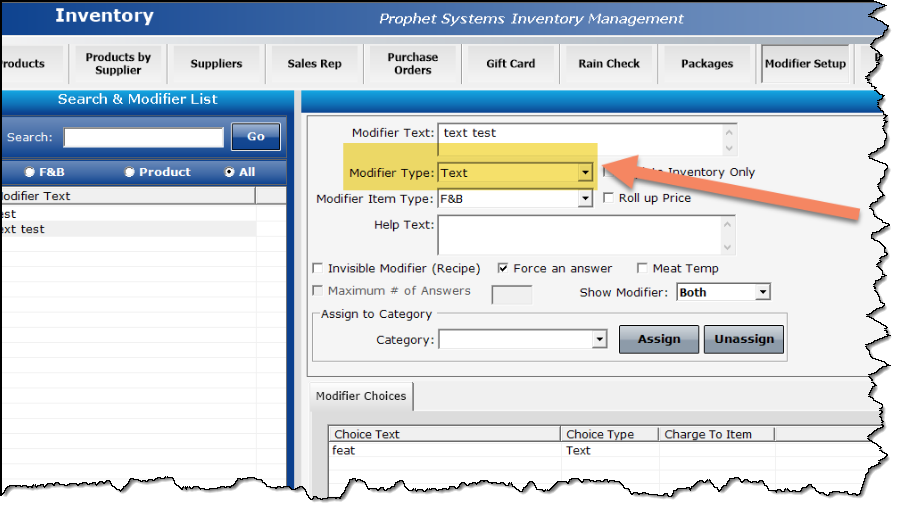
- In the lower-right corner, click Add Choice. The Item Modifier screen displays.
- Enter a prompt for the text that is to be entered in the Choice Text text box.
WARNING: You must enter a prompt in order for the text box for which the user will enter into displays; it could even say: Special Instructions.
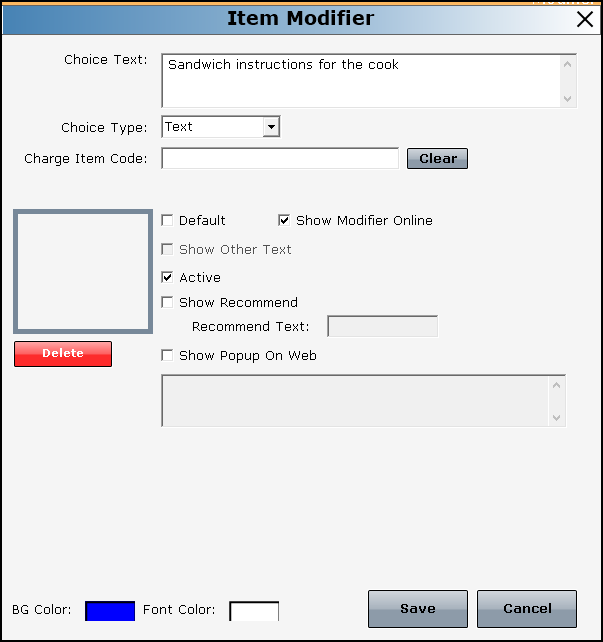
- Make sure Text is selected from the Choice Type drop-down list. Update or add to this modifier as needed.
- Add a code into the Charge Item Code box if there is a charge for this.
- Make sure the Show Modifier Online checkbox is selected.
- Click Save.
- Exit Inventory. Next time you enter an item to be sold that requires this modifier, you will be prompted to add text.
To add text to a modifier in CPS Air
- From either the Sales screen or in F&B in CPS Air, start a sale.
- Enter the item that was created that has a modifier set up to have text entered in for it.
- Go through the screens one at a time if there are other modifiers set up, like Sides, and Add for extras, always selecting Next in the top part of the screen. Eventually, the text entry-modifier displays.
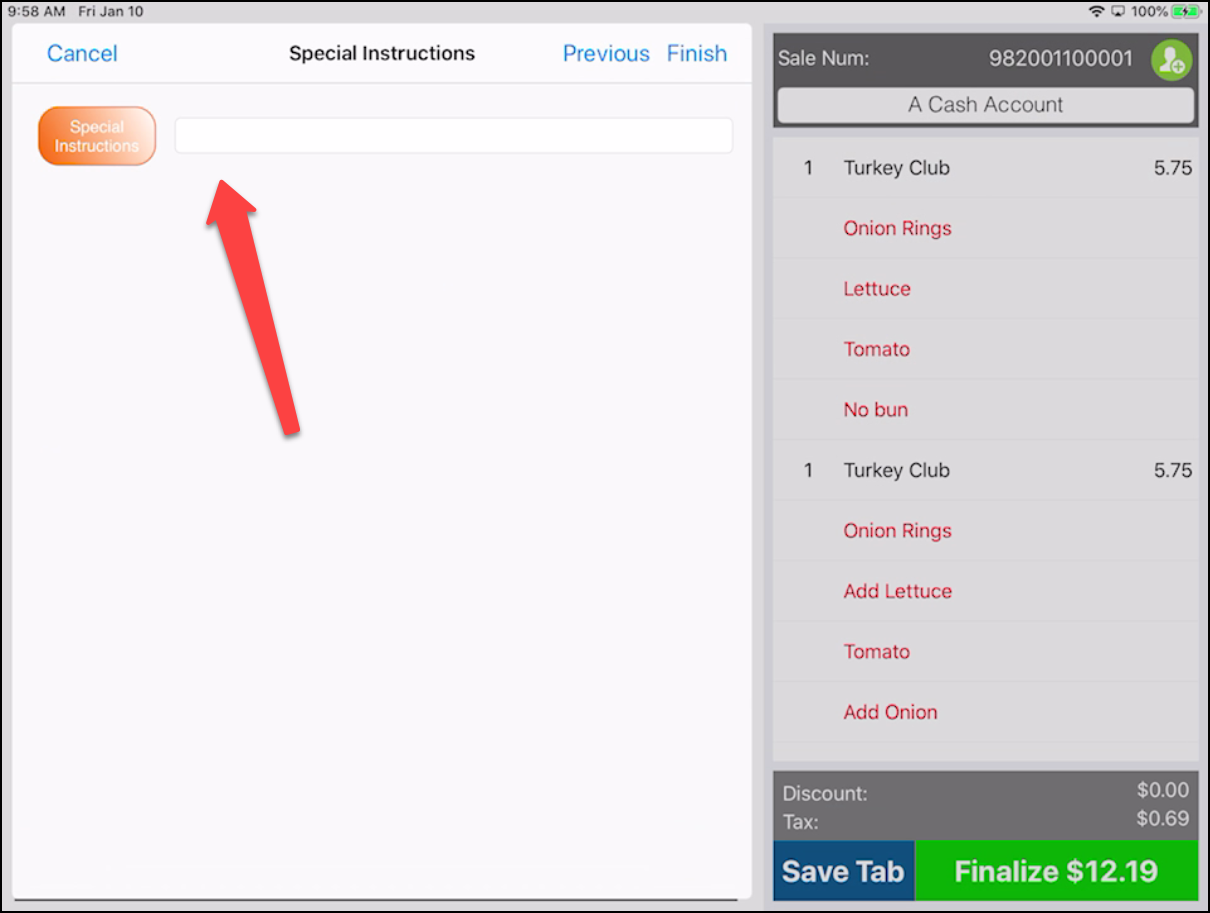
- Select the text-entry box. The keypad displays below.
- Enter the instructions into your labeled text box and select Finish when you are done. The text you typed into the box displays in the tab to the right.
- Select Save the Tab in the lower right part of the screen. You may be prompted to enter a name for this tab. After you do, the print out displays the instructions for the kitchen if this is set up.
- Continue to work with the tab as usual until you need to finalize the sale.
To add text to a modifier using the Kitchen Note button
Before you finalize a tab, you can use the Kitchen Note button to alert the staff in the kitchen of specific needs for this order even if a tab was saved.
-
After you have started the order, open the tab.
-
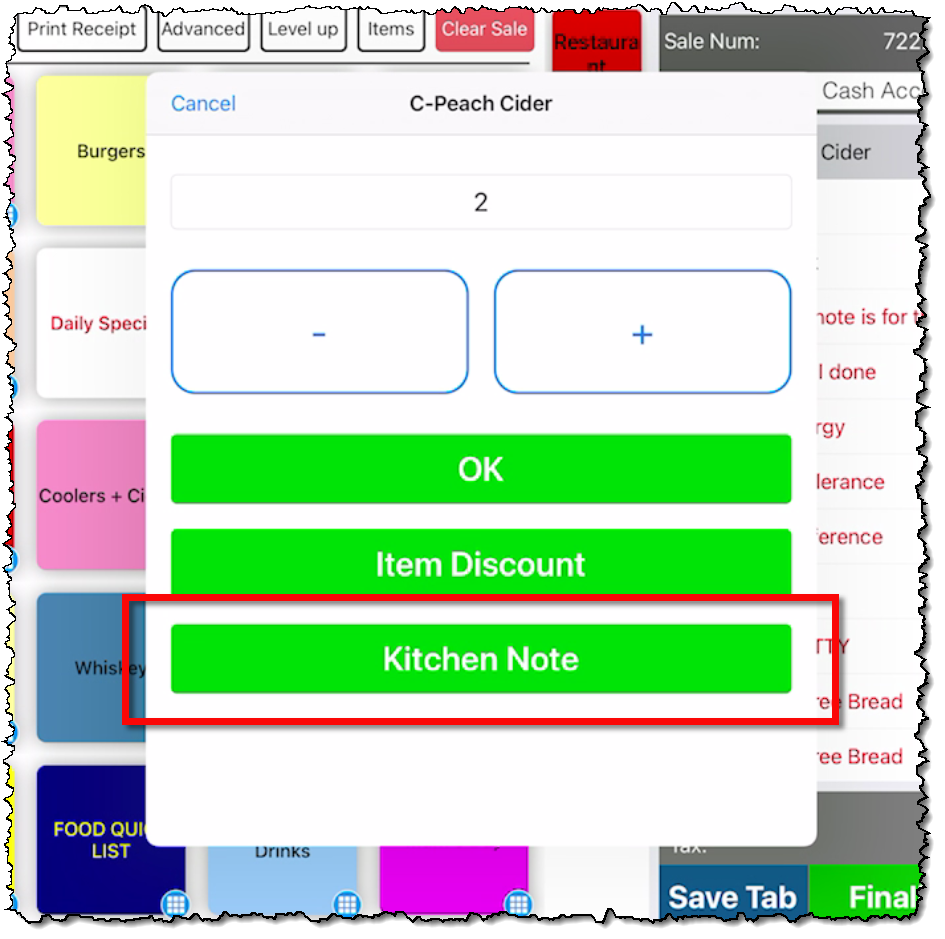
Select the item listed to the right to which you want to add a note. A pop-up displays with the name of the item at the top of it.
-
Select the Kitchen Note button. A text-box displays with a blinking cursor and the keypad pops-up.
-
Enter the note for the kitchen and then select Done in the top-right corner. The note displays under the item.
Related Topics
To learn about: