Booking source identifier feature
In the 3.96 release, you can now set your Online Res v5 (ORE5) site to report any bookings that come through the site as any booking source you desire.
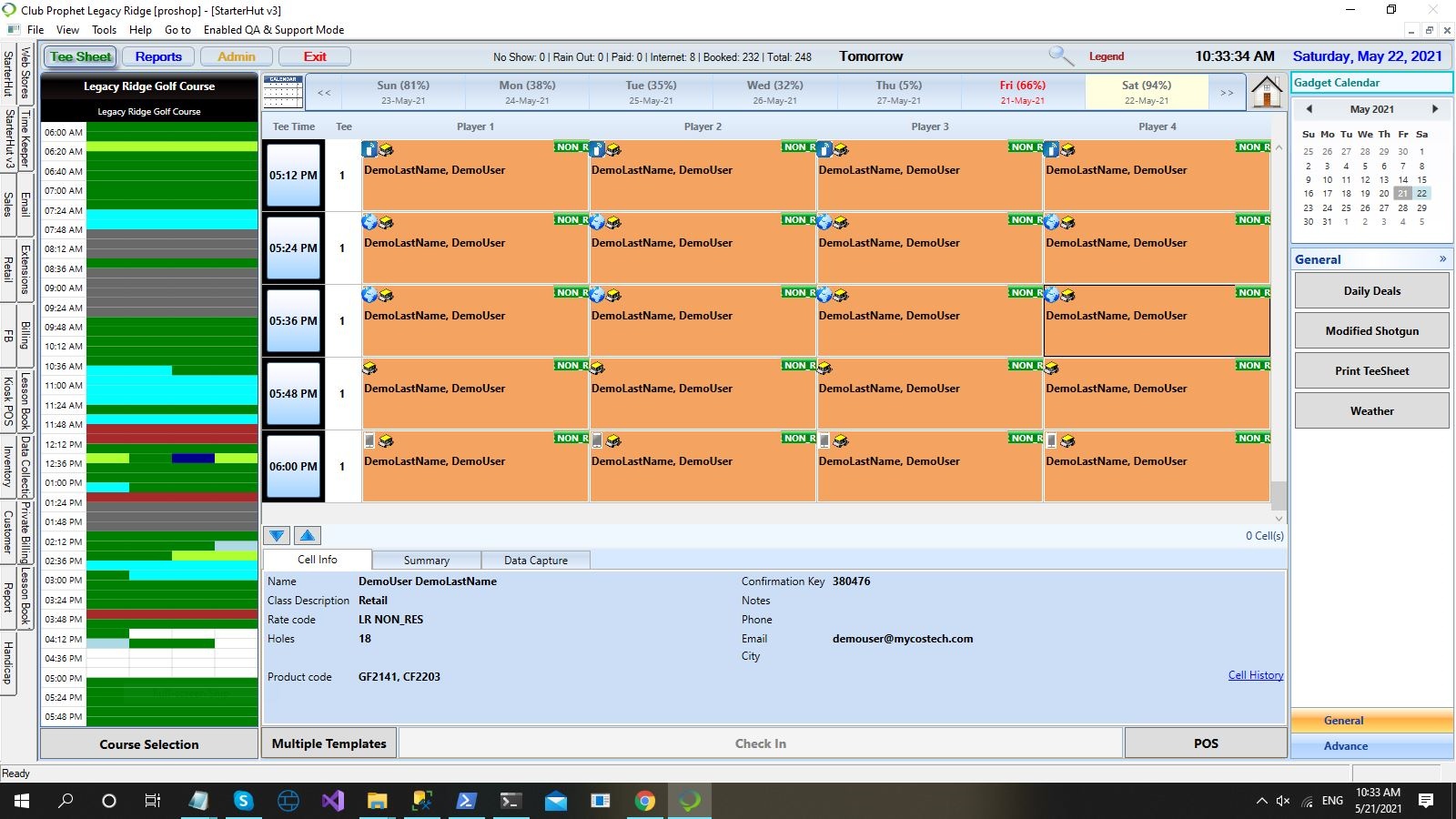
You can see a graphical identifier so you can quickly tell where a booking was made. This is convenient for customers who have multiple site IDs set to use a third-party booking ID to track them. The icons that display on the tee time cell help the pro shops to see mobile bookings which are online or mobile type; the three booking source icons are as follows:
-
Blue Globe - CPS desktop booking
-
Gold Globe - Third-party flagged booking
-
Mobile Phone - Booking made from a cell phone
To set up an alternate booking source identifier
-
Go to the Online Options site and log in as an admin or with the proper permissions.
-
On the left-hand side of the screen, select Starterhut | Online Booking | Display drop-down, then select Site Configuration. The Site Configuration screen displays to the right.
-
On the right side of the screen, scroll down until you see the Booking Source Identifier section, then select the Set new booking identifier checkbox in the far-right corner of this section:

Note: The checkbox enables the linked drop-down field, and when enabled shows all third-party booking IDs in the system. When not checked the drop-down is disabled.
-
In the drop-down below the checkbox, select the booking source that you would to identify in Starter Hut and in your reports.
-
Select Save in the lower-right corner of the screen. The next time a booking is made the alternate booking identifier displays in the top-left corner of the tee time cell booking.
To see the booking identifier in Starter Hut v3
After this is set up in the Admin side of Online Res v5, the icon is also visible in CPS Air as well as Starter Hut in CPSm as follows:
1. Go to Starter Hut.
2. Select a tee time.
3. Click the Refresh button. In the top-left part of the cell, you see the third-party booking identifier which is a globe or cell phone icon depending on how you set this up.

To run reports on all booking sources
-
Go to Starter Hut.
-
Select the Reports button at the top towards the right of the screen.
-
Towards the bottom left, select Statistics.
-
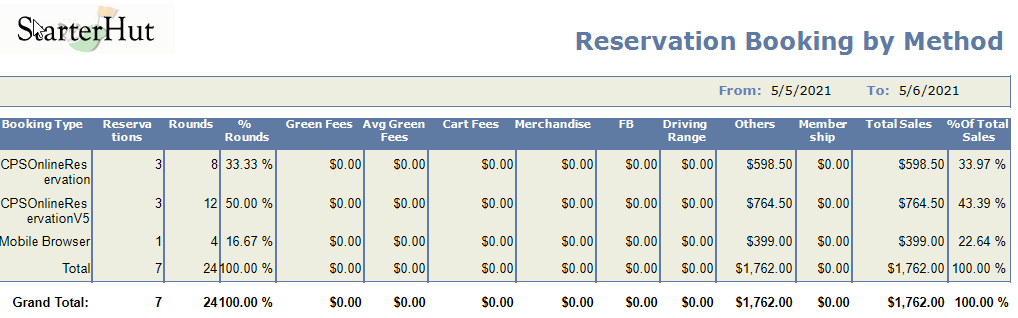
In the list above, near the top-left of the screen, select Reservations by Booking Method. The filters for this report display to the right.
-
Select your desired criteria and select Go. The report displays at the bottom with the Booking Type column displaying the alternate booking source(s) that you set up.
Note: Use the Export or Print buttons if you want to export or print the report.