Loyalty points combine when merging customers
When merging two customer accounts in version 3.96, the loyalty points earned in the two accounts can now combine.
Shout out to Bill Johnson @playlegacy.com
How to check for duplicate customers
-
After noting the account numbers of the duplicate customers, go to the Customers module.
-
Select the Duplicate Customer button at the bottom of the screen. The Check Duplicate Customer screen displays.
-
In the Check duplicate by Customer Name field, enter the name of the customer. A list drops down with the name or parts of the name.
-
Double-click the name.
-
Select Add. The name of the customer displays in the list below.
-
Repeat steps 3-5 for the duplicate customer name. This name is added below in a new Data2 column to the right of the first name.
-
Make sure the account numbers are the ones you noted in step 1.
-
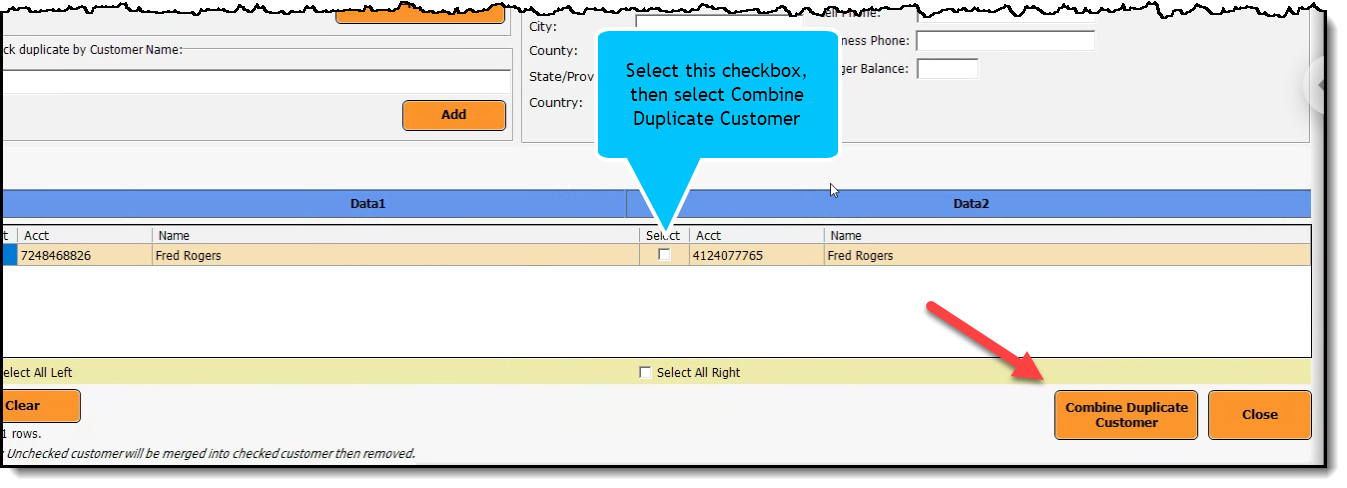
Select the Select checkbox to the left of the Data2 name.
-
Select the Combine Duplicate button in the lower right corner of the screen. The customer is combined.
-
Go back to the Customer module, and check that the customer’s data is correct.
-
Select the Loyalty Earned tab to the right and mid-screen.
-
Select the All button in the middle of the screen. The list of points and that data displays.
-
Make sure the loyalty points from the duplicate customer are now listed here.