Card-on-File feature supported for Moneris Vault in CPS Air
In the 3.100 release, we support the Moneris Vault Card-on-File using CPS Air in the following ways:
-
Card-on-file feature supported with Moneris Vault.
-
Functionality for CPS Air to scan for data stored to determine whether or not a customer had a card on file
-
Ability to add a card on file and to charge the card if on file.
Shout out to Kenny Hoogwater @hazelmere.com
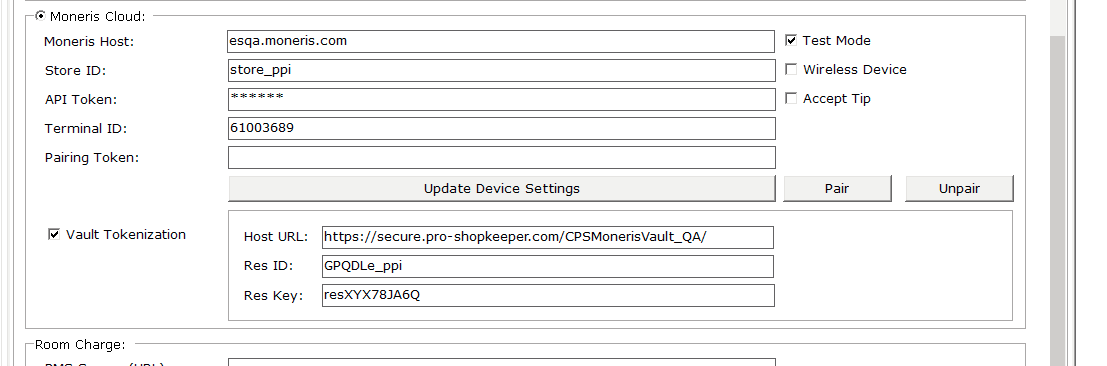
To enable Moneris Vault for CPS Air, at your local terminal running CPS, you need to go to the iOS Settings tab to input the customer's RES ID and RES KEY for Moneris processing as follows:
Note: You can do the following or more likely a Club Prophet support agent will do the following for you.
-
In Tools | Options, go to Reference Tables | Terminal Information. The Terminal Information screen displays to the right with a list of terminals you have set up. If you are setting up an iPad as a terminal for the first time or you need your iPad set up as a terminal, contact Club Prophet Support.
-
Double-click the terminal set up for your iPad using CPS Air. The terminal information for your iPad displays under the Terminal Settings tab with an iOS Settings tab to the right of that. What iOS Setting tab?

-
Click the iOS Setting tab to the right of the Terminal Settings tab at the top of the screen. The iOS settings display.
-
In the Moneris Cloud section, select the Vault Tokenization checkbox, and enter the following for Moneris processing:
-
Host URL - https://ccm.cps.golf/CPSMonerisVault/
-
The merchant’s Res ID - should be the same one that is used for your POS.
-
The merchant’s Res Key - - should be the same one that is used for your POS.
-
Note: If you don't have the Res ID or Key, you can find it in the Moneris Vault section of the Moneris portal at https://www3.moneris.com.
5. Select Save and Close when you are done.
6. Open CPS Air or How?Select the  menu | Connected | Connect. if already running and run a Moneris Vault-type card-on-file.
Note: For details on how to finalize a credit card purchase in CPS Air, jump here>>
To process a Moneris credit card
-
Go to the Sales screen in CPS Air.
-
Enter the item you are selling.
-
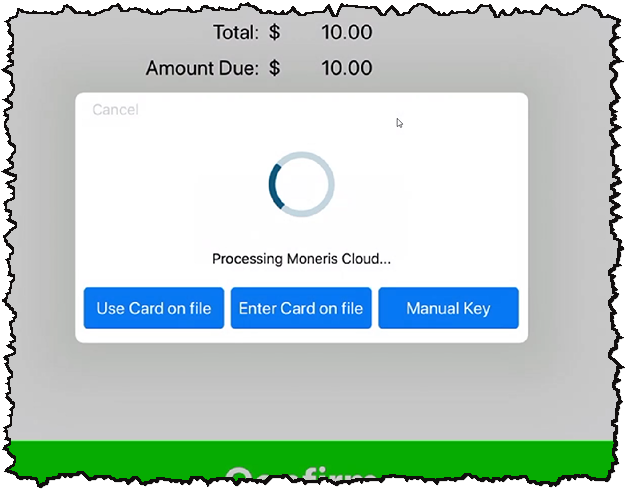
Finalize the sale. The Moneris Cloud processing screen displays.
Note: At this point, you can choose to use this customer’s card on file, enter their card to be placed on file or enter their credit card information manually.
Kenny Hoogwater
-
Click here to watch a video on using the card on file>>
Click here to watch a video on entering the card on file>>
Note: Moneris Cloud uses devices like the E355 or P400 to process cards. In the middle of the process, you’ll be prompted with a PRESS X message. When this happens it is asking for the device to be tended to so that it is not waiting for something to happen. Once you press X on the device, the software can process to the Vault. This happens in your regular POS as well with those settings.